
You've probably seen this ticket before. An app was “uninstalled,” but its service is still there, still trying to start, still showing up in Services, and still making the endpoint look dirty. Sometimes it's just sloppy software. Sometimes it's a failed EDR migration, a dead backup agent, or a legacy line-of-business tool nobody wants to admit is still hanging around.
For an MSP, that's not cleanup work. That's operational hygiene. If you're responsible for patching, remote management, compliance evidence, and incident response, you can't treat Windows services like harmless leftovers. A bad service can create noise, break tooling, or leave a persistence point behind that no one notices until much later.
The trick is knowing how to remove Windows service entries without breaking the box in the process. The command is simple. The decision around when to use it, what to verify first, and how to scale it safely is where the actual work happens.
Why Removing Windows Services Matters for MSPs
A leftover Windows service usually starts as a nuisance. Then it turns into a bigger problem.
A failed uninstall can leave an orphaned service pointing to an executable that no longer exists. A legacy security tool can keep loading drivers or startup routines that confuse your new stack. A privacy or performance tweak from an overconfident tech can disable something that looked optional but turns out to matter for recovery, updates, or remote support.
That's where a lot of public how-to content falls short. Many guides show the command syntax, but they don't help you answer the MSP question: is this safe across endpoints, editions, and patch levels? As noted in this discussion of Windows service disablement tradeoffs, weak guidance around dependency mapping and recovery planning can create downstream issues for update compliance, remote management, or incident response.
The real MSP concern
If you manage one laptop, you can experiment. If you manage a fleet, you need repeatability and rollback.
That matters for clients working through SOC 2, HIPAA, PCI DSS, or ISO 27001 controls, because system hardening has to be deliberate. A service that exposes remote access, starts an abandoned agent, or supports software nobody owns anymore is part of your attack surface. It also becomes part of your evidence trail during a risk assessment.
Practical rule: Remove services because you understand their function, not because a tuning guide told you they “look unnecessary.”
A mature workflow ties service cleanup to asset management, monitoring, and threat and vulnerability management. That's the difference between one-off admin work and managed security operations.
Standard Removal with the GUI and Command Line
A routine app uninstall can leave behind a service that still starts at boot, still runs as LocalSystem, and still shows up in your audits. For an MSP, that is not cleanup. It is an unresolved security and operations problem.
Find the correct service name
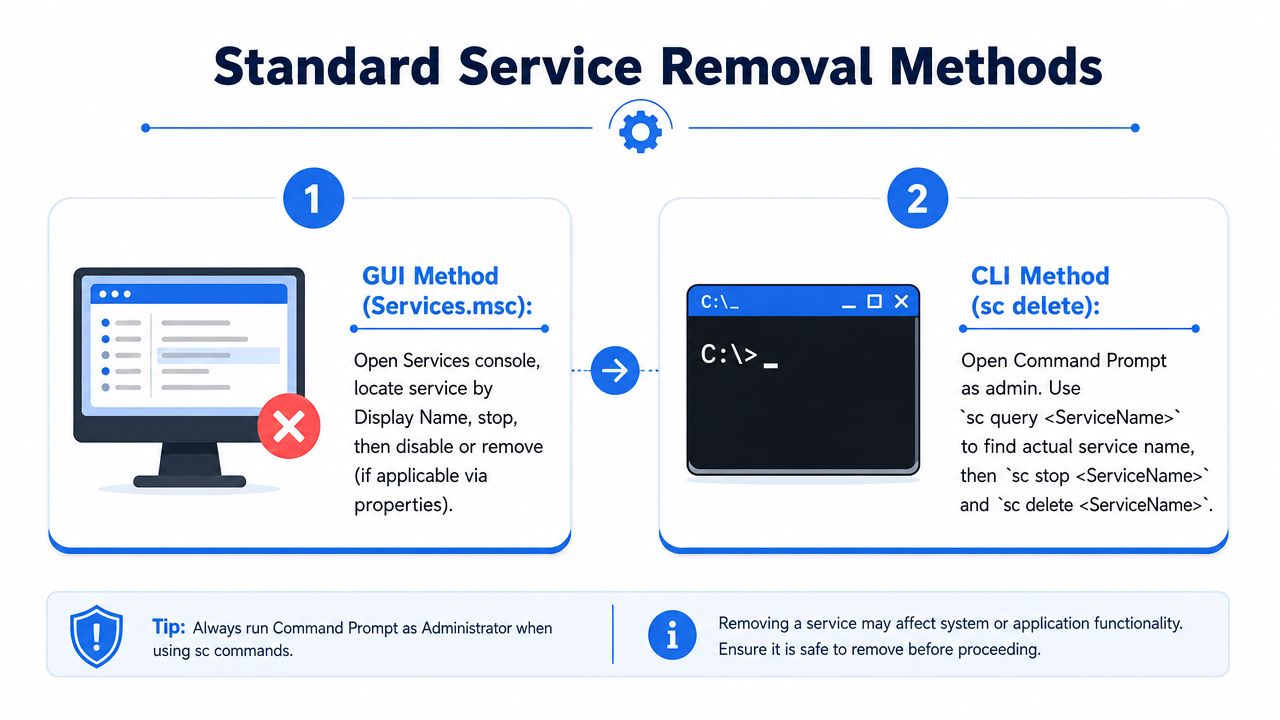
Start in Services.msc, but do not trust the first label you see. Windows shows both a Display Name and a Service name, and only the service name works reliably with deletion commands.
That distinction causes a lot of failed removals and bad change records. The workflow described in this Spiceworks guide on deleting a Windows service is the one I use in production: confirm the exact service in Services.msc, open its properties, record the actual service name, then remove it from an administrator shell.
Use this order:
- Open Services.msc
- Locate the service
- Open Properties
- Record the Service name
- Stop the service if it is running
- Note the Path to executable for later file cleanup and validation
That last check matters. If the binary path points to an abandoned vendor folder, a temp directory, or a user profile path, you may be looking at more than a broken uninstall.
Remove the service with sc delete
Open Command Prompt or Terminal as administrator and run:
sc delete SERVICENAME
sc.exe removes the service registration from the Service Control Manager database. It does not guarantee that the application files, scheduled tasks, firewall rules, or registry leftovers are gone. Junior admins often stop at the command prompt and call the job finished. On managed endpoints, that leaves drift behind.
If you are working on a remote system and the endpoint needs a reboot before the service entry fully disappears from the console, use a controlled process for a remote restart of the computer so you do not interrupt users or lose your change window.
If
sc deletefails, verify that you used the actual service name, not the display name, and confirm you are in an elevated session.
A safe manual workflow looks like this:
- Confirm the target: Match the service name, display name, startup type, and executable path
- Stop it cleanly: Reduce the chance of partial removal or a service stuck in a pending state
- Run the delete command as admin: Standard user shells waste time and create inconsistent results
- Check for leftovers: Review program files, uninstall entries, scheduled tasks, and event log noise after removal
- Document the change: Record what was removed, why it was removed, and whether a reboot was required
GUI removal and command-line removal are not competing methods. The GUI is for validation. sc.exe is for the actual delete action. That split keeps mistakes down, especially during remote sessions or after-hours cleanup.
If you are cleaning up after a failed application uninstall, vendor documentation still helps on the application side. For example, if you need to uninstall WhatPulse software, follow the vendor cleanup steps first, then remove any orphaned service entry the uninstall leaves behind.
Automating Service Removal Using PowerShell
If you support more than a handful of endpoints, manual service deletion doesn't scale well. PowerShell gives you a repeatable workflow, better logging, and fewer keyboard mistakes.
A lot of admins treat sc.exe as the only answer because it's native and fast. It is fast. It's also easy to fat-finger in a remote session. PowerShell is better when you want consistency across clients and sites.
A practical PowerShell pattern
Use a small script that checks whether the service exists, tries to stop it, then calls sc.exe for the actual delete action.
$ServiceName = "YourServiceName"
$svc = Get-Service -Name $ServiceName -ErrorAction SilentlyContinue

if ($null -eq $svc) {
    Write-Host "Service not found: $ServiceName"
    return
}

if ($svc.Status -ne 'Stopped') {
    try {
        Stop-Service -Name $ServiceName -Force -ErrorAction Stop
        Write-Host "Stopped service: $ServiceName"
    }
    catch {
        Write-Host "Failed to stop service: $ServiceName"
        return
    }
}

sc.exe delete $ServiceName
Write-Host "Delete command sent for service: $ServiceName"
This works well in RMM scripts, remote admin sessions, and standard endpoint cleanup jobs. It also gives you a pattern you can adapt for approvals, logging, and post-removal verification.
Why MSPs should script it
PowerShell helps you standardize the task. That matters when one engineer is handling a single incident and another is cleaning up a client-wide deployment issue.
Use automation when you need to:
- Apply the same logic everywhere: The same checks run every time
- Reduce naming mistakes: You can pull the service name from inventory or prior discovery
- Document the change: Script output is easier to store in tickets or change logs
- Bundle follow-up actions: Restart related software, remove files, or trigger validation
If the service removal is part of broader maintenance, pair it with related automation like remote restart computer workflows so the endpoint returns to a known-good state without extra technician touch time.
Forcibly Removing Stubborn or Stuck Services
A stuck service is rarely just an annoyance. In MSP work, it often means failed software removal, a broken agent upgrade, or a persistence point that stayed behind after an incident response job. If you force the wrong fix, you can break monitoring, patching, or line-of-business software across multiple endpoints.
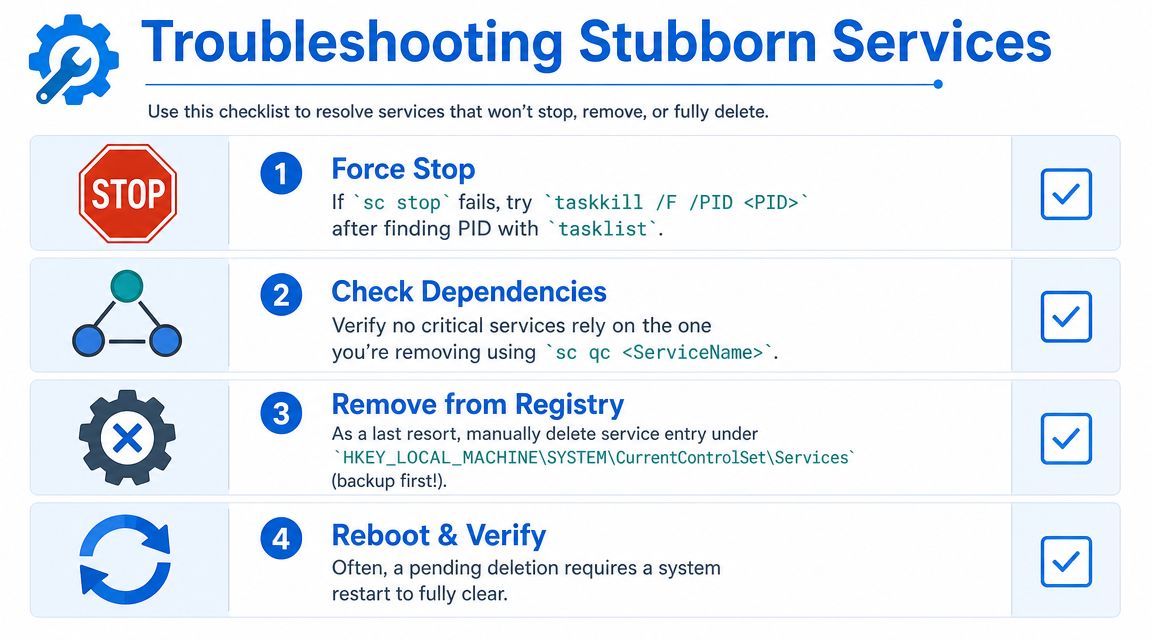
Windows usually leaves a service behind for a reason. Common causes include an active process, a dependency chain that is still in use, a service marked for deletion until reboot, or a damaged registration under the Services registry hive. The fix depends on which of those you are dealing with.
What to check before you force anything
Start with state validation, not registry edits.
- Confirm the process state: If the service is still running, deletion may stay pending
- Check dependencies: Use the Dependencies tab or
sc qc <service name>before removing anything shared - Verify the binary path: Confirm what executable the service points to and whether another product uses it
- Refresh your view: Services.msc and Server Manager do not always reflect pending changes immediately
- Schedule a reboot if needed: A restart often clears services marked for deletion but still held open by the Service Control Manager
Junior techs often get burned. They see a service that looks unused, remove it, and later find out it supported Windows Update behavior, EDR telemetry, backup jobs, or a vendor agent. In managed environments, service removal is change control, not cleanup theater.
"Unused right now" is not the same as "safe to remove."
The registry fallback method
Manual registry removal is the last resort after you have confirmed the service should be gone and normal deletion has failed.
If the service entry is corrupted or stuck after stop, delete, and reboot attempts, inspect HKEY_LOCAL_MACHINE\SYSTEM\CurrentControlSet\Services and remove only the matching service subkey. Then restart Windows so the Service Control Manager reloads its configuration.
Use this process carefully:
- Open Registry Editor as administrator
- Browse to
HKEY_LOCAL_MACHINE\SYSTEM\CurrentControlSet\Services - Locate the exact subkey for the service
- Export that key as a backup
- Delete only that service key
- Restart Windows
- Confirm the service no longer appears and that related software still functions
If the host is security-sensitive or business-critical, capture the service name, display name, image path, startup type, and dependency details before you delete anything. That record matters if you need to restore service registration or explain the change during an audit.
What works and what usually doesn't
Field results are fairly consistent.
| Situation | What usually works | What often fails |
|---|---|---|
| Orphaned service after uninstall | Stop service, sc delete, remove leftover files after validation | Deleting app files first |
| Service still visible after delete | Reboot, then verify with sc query or PowerShell | Running the same delete command repeatedly |
| Corrupted service registration | Remove the specific registry subkey, then restart | Refreshing the GUI and assuming the entry is active |
| Shared component service | Review dependencies and product impact first | Removing it based on name alone |
Back up the registry before editing it. Document what you removed, why you removed it, and what validation you performed afterward. That discipline protects you when an endpoint loses agent check-ins, misses updates, or shows signs that the "stuck" service was part of a larger security problem.
Hunting and Removing Malicious Windows Services
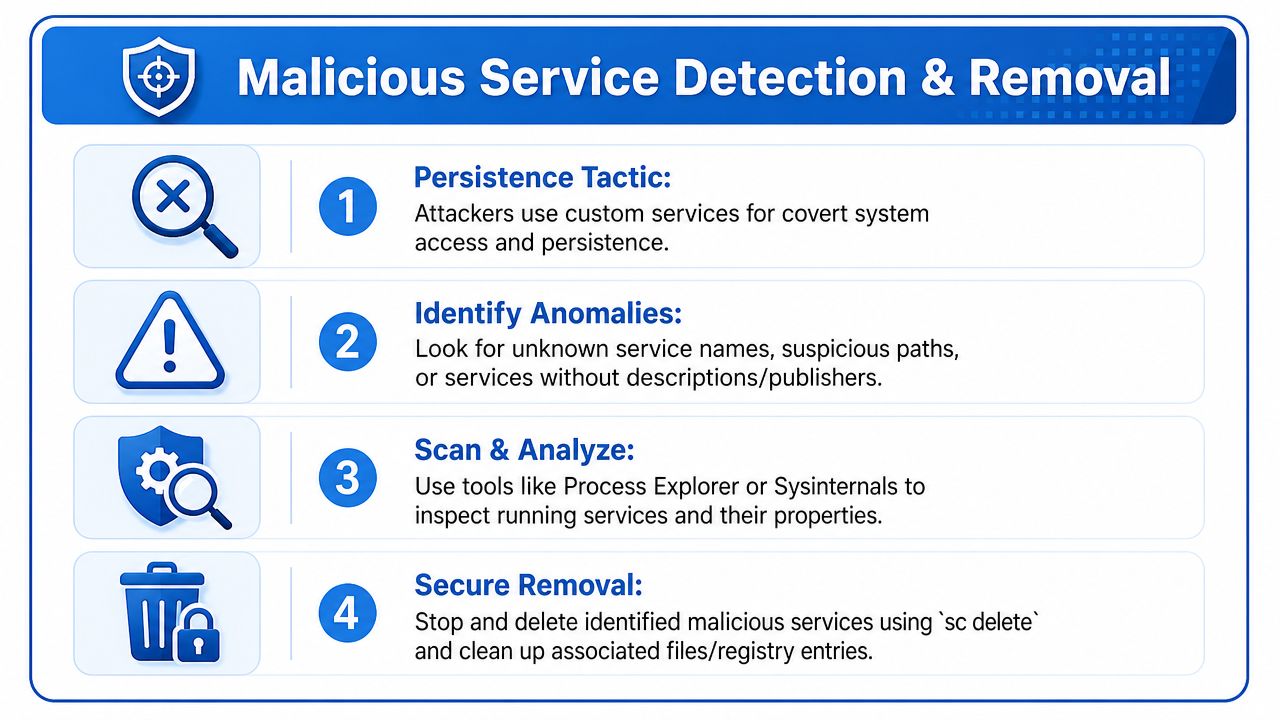
Not every strange service is an uninstall leftover. Attackers use Windows services for persistence because services blend into normal administration and restart automatically.
That's why service review belongs in security operations, not just desktop support. If a machine was compromised, deleting the visible malware file isn't enough if the service entry remains and points to another payload, launcher, or dropped binary.
Signs a service deserves scrutiny
A service isn't malicious just because you don't recognize it. But certain patterns should move it to the top of your review queue.
Look for things like:
- Odd naming: Names that imitate Microsoft components or use random-looking strings
- Weak metadata: Missing description, missing vendor context, or vague labels
- Bad file paths: Executables launching from unusual user-writable folders or odd temp locations
- Mismatch with client standards: A service exists on one endpoint but not on similarly built systems
Use tools like Services.msc, Task Manager, Process Explorer, and other Sysinternals utilities to trace the service binary, startup behavior, and parent process relationships.
A suspicious service is an investigation lead, not proof. Verify the binary path and the business purpose before you remove it.
Removal is only part of the fix
If you identify a malicious service, stop it, remove the service entry, and clean up the related files and startup mechanisms. Then keep going.
A compromised host may also contain:
- Scheduled tasks
- Run keys
- WMI persistence
- Dropped tools under service account contexts
- Secondary remote access agents
That's where penetration testing, pen test validation, and broader penetration testing follow-up matter. Manual cleanup can remove the obvious persistence point, but it won't prove the environment is clean. A deeper pentest or internal review helps determine whether the service was the whole problem or just one artifact of a larger compromise.
For MSPs, vCISOs, and GRC teams supporting SOC 2, HIPAA, PCI DSS, and ISO 27001 clients, this matters because a single malicious service can shift the conversation from routine admin work to reportable risk. That's also why many resellers pair remediation with manual pentesting and a wider risk assessment. The value isn't just deleting one object. It's proving there isn't a second or third persistence path waiting behind it.
Verification and Scaling for Your IT Environments
Deleting the service is not the end of the job. Verification is the job.
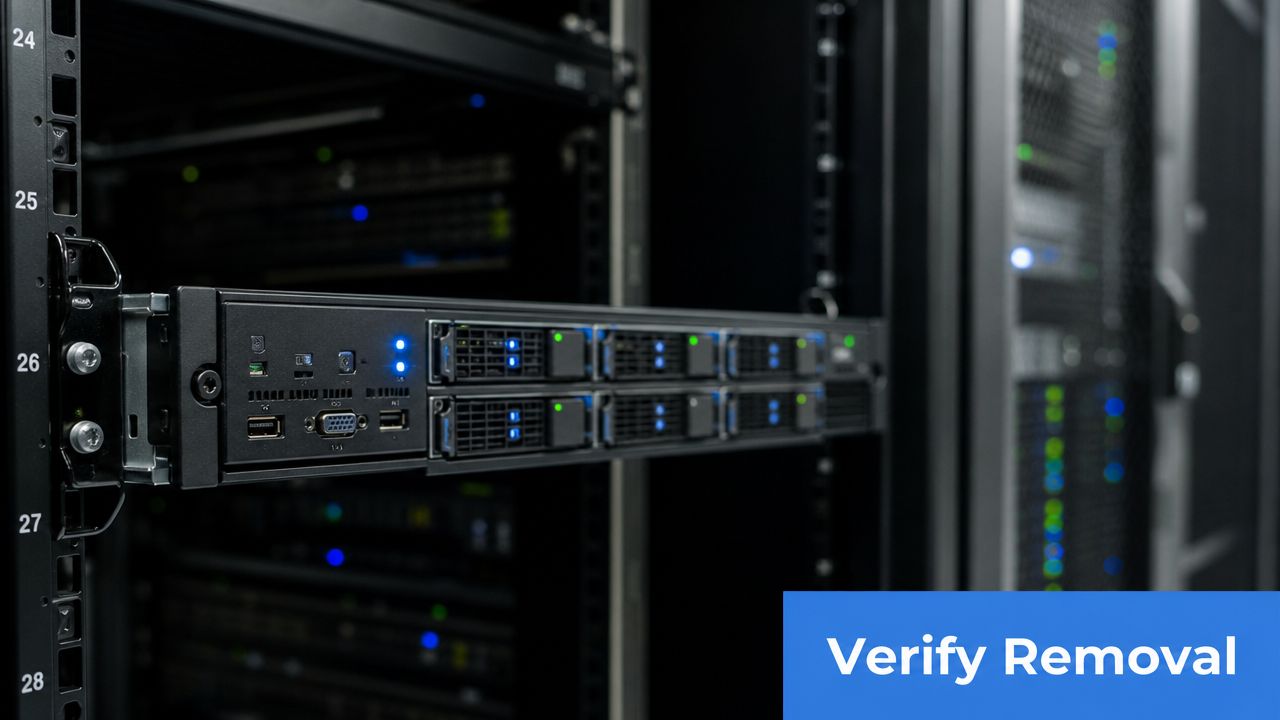
A professional workflow checks three things after removal. The service no longer appears in Services.msc, the binary path no longer resolves to an active startup object, and the service does not return after reboot or software updates. If you skip that last part, you're just creating future tickets.
A repeatable MSP verification checklist
Use a short checklist your team can run every time:
- Confirm service absence: Query for the service after deletion and again after reboot
- Review startup residue: Check whether the software left folders, tasks, or registry autoruns behind
- Validate tooling health: Make sure patching, monitoring, and remote management still work
- Record the change: Add the service name, endpoint, reason, and outcome to the ticket
If you manage multiple clients, build that into your endpoint management process and tie it to device management software practices. That turns service cleanup from ad hoc repair into controlled change management.
Tie service cleanup to threat awareness
A dirty service list can signal bad software hygiene, but it can also point to malware, abuse of remote tools, or post-compromise persistence. If you need a lightweight explainer for non-technical stakeholders, this overview of understanding common cyber threats is a useful companion when you're explaining why suspicious services deserve attention.
The bigger point is simple. How to remove Windows service entries is a technical task. Knowing when to remove them, how to validate the result, and how to scale that safely is what clients pay you for.
If you need a channel-only partner for white label pentesting, manual pentesting, and affordable penetration testing support for MSP, vCISO, reseller, and GRC engagements, see how partner-branded testing works. Our team includes OSCP, CEH, and CREST certified pentesters, and we stay focused on fast, partner-friendly delivery without competing for your client relationships. Contact us today to learn more.

.avif)
.png)
.png)
.png)

