
You usually notice the need for a remote restart computer job at the worst time. A patch needs to finish, an app is hung, a user is locked out of a session, or a machine is acting just broken enough to hurt productivity but not broken enough to justify a site visit.
For an MSP, remote restarts are basic work. But basic doesn't mean careless. The difference between a clean reboot and a messy one often comes down to three things: how you trigger it, how you warn the user, and how you verify it came back.
A junior tech often focuses on the command. A senior admin focuses on the command, the permissions, the audit trail, and the client impact. That's the standard you want.
Your Foundational Command-Line Restart Methods
When you need direct control, command line is still the cleanest place to start. On Windows, the two tools that matter most are PowerShell Restart-Computer and the classic shutdown utility.
PowerShell for managed Windows reboots
Microsoft documents Restart-Computer as a Windows-only cmdlet that can restart local and remote machines, including multiple systems at once, with examples like Restart-Computer -ComputerName "PC1","PC2" -Force. That matters in real MSP work because you can handle one endpoint or a group without changing tools.
Use it when you want something scriptable and repeatable. If you're doing routine maintenance across several endpoints, this is usually the better fit than clicking around in a GUI.
A practical pattern looks like this:
- Single device reboot: Use
Restart-Computer -ComputerName "PC1" - Forced reboot: Add
-Forcewhen an app or session won't close cleanly - Multiple devices: Pass more than one computer name in the same command
- Credentialed access: Use alternate credentials when your current session isn't enough
Practical rule: If you think you might need to run the same reboot process again next week, use PowerShell first and document it.
Shutdown for timing and messaging control
The old shutdown command still earns its place because it gives you precise switches. The common remote form is shutdown /r /m \\PC1, and an immediate reboot uses /t 0. If you need a countdown or user message, add timing and comment options.
That makes shutdown useful when you need a little more control over the user experience on a Windows endpoint. It's not glamorous, but it's dependable when the environment is configured correctly.
Keep these checks in mind before you fire the command:
- Admin rights matter: The account must have authority to restart the target
- Remote features must be enabled: If remote shutdown or remoting isn't allowed, the command won't land
- Firewalls can block you: A perfectly valid command still fails if the path is blocked
Linux and macOS basics
For Linux and macOS, the normal path is simple: connect over SSH and issue reboot. The trick isn't the command. The trick is having working remote access, the right privileges, and a way back in after the machine comes up.
If you're troubleshooting a home office or edge device and need to confirm the host details before touching anything, a quick refresher on finding an IP address for rural internet users can help newer techs verify they're targeting the correct system.
When to Use RDP for a Quick Reboot
Sometimes the fastest method is the least elegant one. If you're already in an RDP session doing support work, restarting through the Windows interface is often fine for a one-off task.
This is the right move when you need visual confirmation before the reboot. Maybe updates are waiting, maybe a line-of-business app is frozen, or maybe you want to verify which user is logged in before you interrupt anything.
Where RDP fits best
RDP is good for attended support. You're already on the machine, you can save work, warn the user, and restart from the Start menu or the security screen without opening another tool.
It is not the best option when you need scale, repeatability, or strong documentation. For that, your command line tools or management platform will beat it every time.
If you can solve the issue while staying in the same remote session, do that. Every tool switch adds time and increases the chance of hitting the wrong machine.
Security still matters here. If you're exposing remote desktop in any way, review your setup and hardening approach before relying on it as an everyday admin path. This guide on changing the Remote Desktop port securely is worth keeping in your internal documentation stack.
Scaling Restarts with RMM and MDM Tools
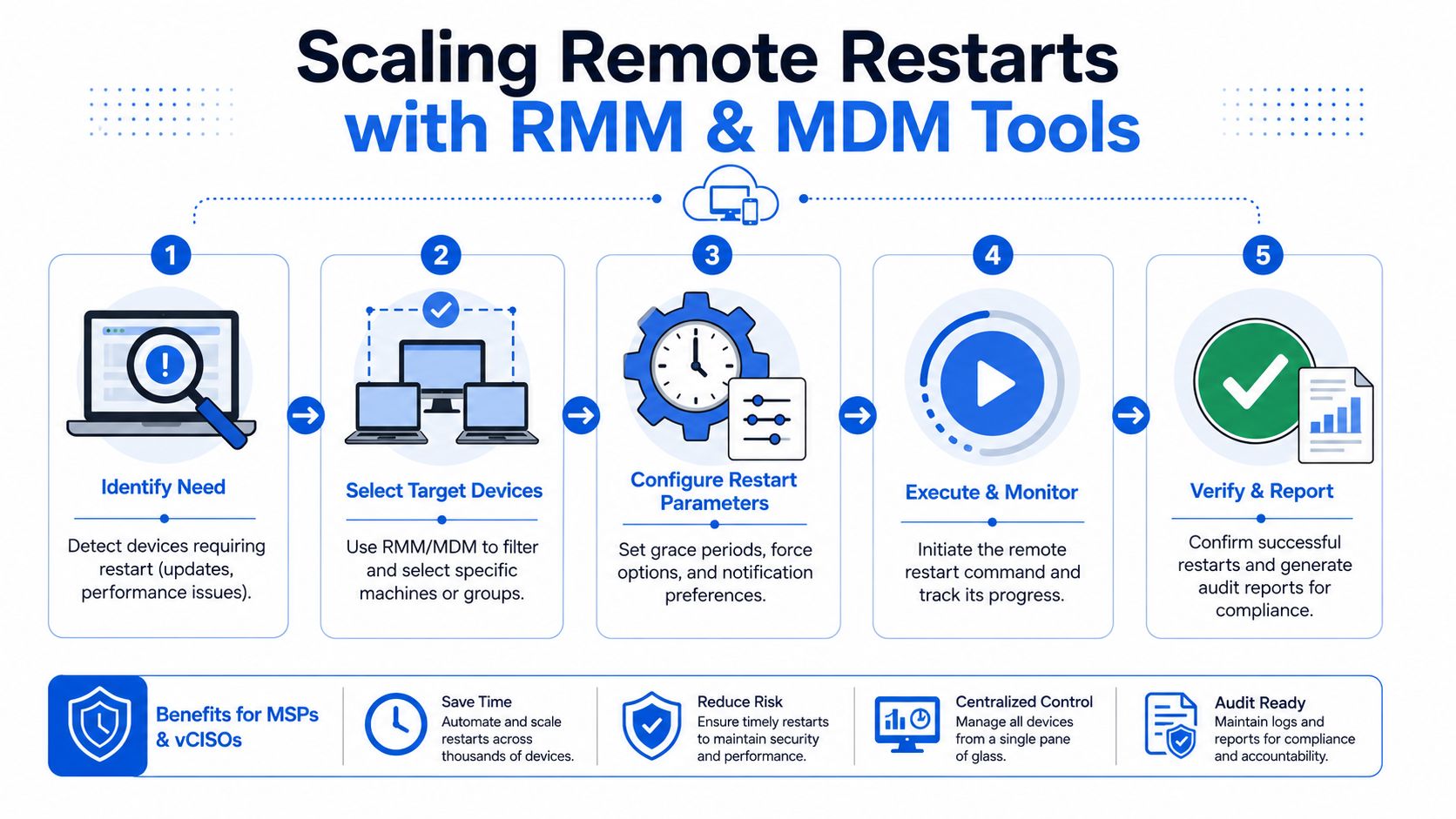
Once you move beyond one machine at a time, command line alone stops being enough. You need policy, scheduling, targeting, and proof. That's where RMM and MDM platforms become the answer for remote restart computer workflows.
Why platforms beat ad hoc commands
At client scale, the hard part isn't sending the reboot. The hard part is deciding who gets restarted, when they get restarted, what warning they see, and how you confirm success.
For managed endpoints, professional restart workflows should include options to warn users and set timeouts before a reboot, because unsafe restarts can cause data loss and create SLA problems, as noted in this guidance on managed endpoint restart workflows.
That is why an RMM or MDM platform is usually the safer path for production environments. You get consistency, cleaner change control, and fewer angry calls from users who lost unsaved work.
What a mature MSP process looks like
A solid restart workflow usually includes:
- Targeting by group: Reboot only the devices tied to a patch ring, site, or client policy
- User communication: Send a warning with enough time for users to save work
- Maintenance windows: Push the action when disruption is lowest
- Execution tracking: Watch which devices accept the command and which ones don't
- Post-restart review: Confirm systems return to service instead of assuming they did
If your team also supports endpoint policy and device lifecycle work, keep your tooling aligned. This overview of device management software for MSP environments pairs well with restart procedures because the reboot is only one piece of endpoint control.
Infrastructure still affects success
A lot of failed restarts get blamed on tools when the underlying problem is network design. If the client site has weak segmentation, bad uplink choices, or unpredictable switching, remote management gets flaky fast. Newer techs who need a quick primer should compare managed vs unmanaged switches because switch capability often shapes how reliable remote actions are across a client network.
Understanding Safe vs Forced Restarts and Auditing
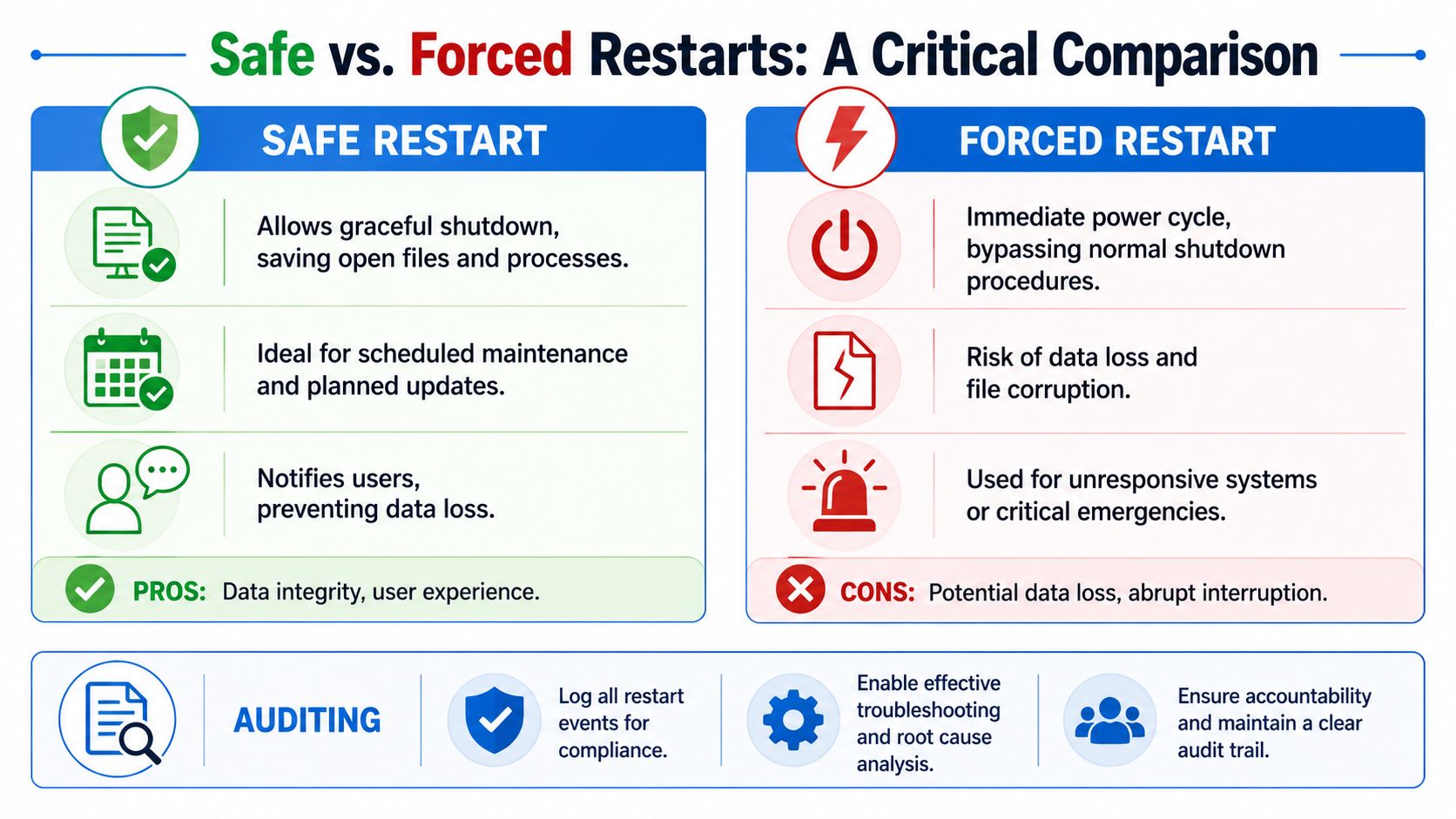
A restart is not always just a restart. There is a big operational difference between a safe restart and a forced restart, and if you work with regulated clients, that difference belongs in your documentation.
Safe restart first
A safe restart is the default. You give the operating system and the user session a chance to close normally. That protects open files, gives applications a shot to write data, and lowers the odds of corruption or confused users.
This is the right call for patching, scheduled maintenance, and ordinary support work. In most client environments, this should be your standard path unless there's a real reason to do otherwise.
Forced restart has a place
A forced restart is for situations where normal shutdown isn't happening. Maybe an application is stuck, maybe the session is hung, maybe the endpoint is half-responsive and blocking a maintenance task.
That doesn't make a forced reboot harmless. It means you're choosing speed over grace because the situation justifies it. If a user has unsaved work, a forced reboot may wipe it out.
A simple way to coach junior techs is this:
Restart typeBest useMain riskSafe restartPlanned maintenance, updates, normal supportSlower if apps resist closingForced restartHung apps, frozen sessions, urgent recoveryData loss or file corruption
Field advice: If you can't explain why the reboot must be forced, it probably shouldn't be forced.
Auditing the reboot
During remote restarts, a lot of teams get sloppy. They send the reboot command, see the machine disappear, and call it done. That's not enough.
After a remote reboot, standard validation includes pinging the machine, reconnecting over SSH, or checking Windows Event Viewer for event IDs 1074 and 6006, as described in this guide to remote reboot verification and event checks. Event ID 1074 reflects a shutdown or restart initiated by a user or process, and 6006 indicates a clean shutdown.
Those checks matter for troubleshooting, but they also matter for SOC 2, HIPAA, PCI DSS, and broader GRC expectations. If a client asks who restarted a server, whether users were warned, and whether the machine came back cleanly, you need an answer that isn't guesswork.
What to log every time
In a mature environment, capture these details in the ticket or system notes:
- Who initiated it: Named technician or automation policy
- Why it happened: Patch completion, incident response, performance issue, user session problem
- How it was triggered: RMM action, PowerShell, shutdown command, or interactive session
- Whether users were notified: This matters more than many teams realize
- How success was verified: Reconnected, pinged, or confirmed through logs
That level of detail supports compliance, internal accountability, and plain old operational sanity. It also supports security work tied to risk assessment, ISO 27001, and broader compliance reviews where process discipline matters just as much as technical capability.
Troubleshooting When a Remote Restart Fails
A failed reboot attempt usually comes down to one of three things. No network path, no permissions, or no responsive operating system. Your job is to figure out which one quickly.
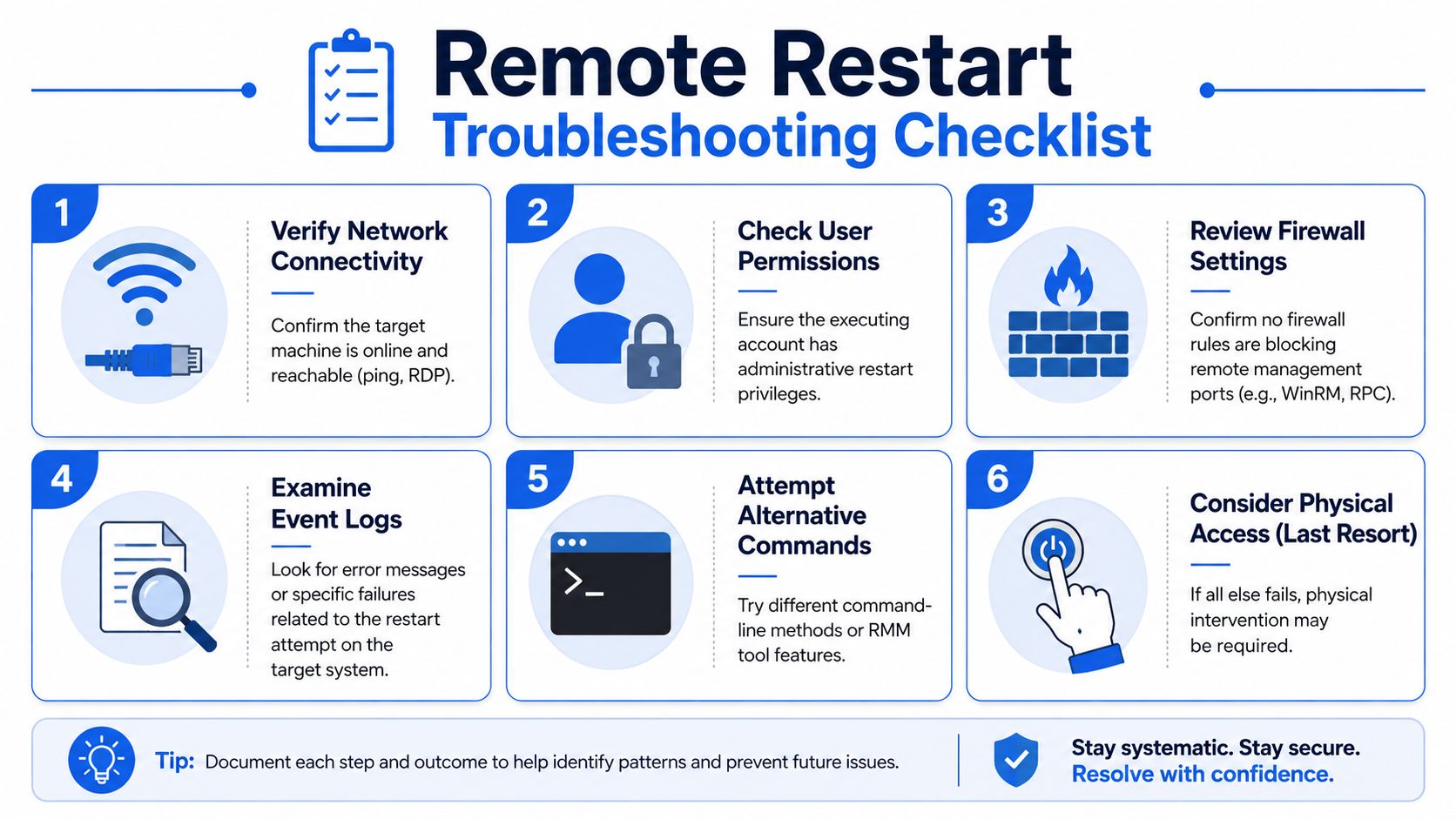
Start with the basics
Don't overthink the first pass. Confirm the device is reachable, confirm your account has the right privileges, and confirm the management path you planned to use is enabled.
Use a short checklist:
- Check connectivity: Can you reach the host at all through your normal support path?
- Confirm rights: Local admin or equivalent authority is usually required
- Review firewall behavior: If remoting ports or services are blocked, the reboot won't happen
- Try another method: If PowerShell fails, test your RMM action or another approved path
Know when the OS is the problem
Some failures are not command problems. They're endpoint health problems. If the machine is at a blue screen or the operating system is no longer responding, standard remote restart commands usually fail and you often need physical or out-of-band access, according to this community guidance on recovering a BSOD remote machine.
That's why senior techs separate routine reboot failure from host recovery failure. They are not the same issue, and they should not be worked the same way.
A machine that ignores your reboot command may still be on the network. A machine at a blue screen is a different class of incident.
If you're collecting system evidence around patching or reboot behavior, having a reference for reviewing Windows Update logs during troubleshooting can help your team connect restart failures to update activity without guessing.
Partner with Us for White Label Pentesting
Keeping client systems running is only part of the job. Clients also need proof that those systems are secure, and that's where pentesting, pen testing, penetration testing, and a clear risk assessment process come in.
For MSPs, vCISO teams, GRC firms, CPAs, and other reseller partners, the challenge is offering strong security services without sending your client to a firm that might compete with you. A channel-only model fixes that. You keep the relationship, keep the brand, and expand your service stack with white label pentesting that supports SOC 2, HIPAA, PCI DSS, and ISO 27001 work.
We provide affordable, manual pentesting performed by certified professionals with OSCP, CEH, and CREST credentials. That means fast, practical pentest delivery without the inflated pricing, weak methodology, or long waits that too many partners run into. If you need a white-labeled penetration test partner that won't compete with your business, this is built for you.
If you're an MSP, vCISO, GRC provider, or IT reseller that needs fast, affordable, white-labeled pentesting from OSCP, CEH, and CREST-certified professionals, our program to sell pentests under your own brand is built for your channel model. Contact us today to learn more.

.avif)
.png)
.png)
.png)

