
If you run an MSP, you’ve probably seen this more than once. A new client comes onboard, someone checks remote access, and there it is. RDP exposed on port 3389 with no real thought given to who can see it, who can hit it, or how often bots are already knocking.
That matters for security, but it also matters for your business. One exposed RDP service can turn into after-hours support tickets, incident response costs, awkward SOC 2 or HIPAA conversations, and a client asking why their provider didn’t lock down something so basic. Changing the port won’t solve remote access security by itself, but it’s one of the fastest hardening moves an MSP can make.
Why Your Client's Default RDP Port Is a Major Risk
The default Remote Desktop Protocol port is a magnet for noise. Attackers don’t need to know your client’s name, stack, or line of business. They just scan for 3389 and start testing credentials.
A Sophos RDP exposure experiment showed brute-force login attempts started in less than one minute after an RDP server was exposed on the default port. Over 15 days, that single server took over 2 million failed login attempts from 999 unique IP addresses, with 137,500 unique usernames tried. That’s not targeted tradecraft. That’s automated background violence on the internet.
For an MSP owner, the takeaway is simple. If a client leaves RDP on the default port and exposes it externally, they’re volunteering for constant low-effort attack traffic.
Why this shows up in audits
When we perform pentest, pen testing, and broader penetration testing work, exposed RDP is one of those findings that creates downstream problems fast. It raises questions about access control, hardening standards, and whether remote administration is being treated as a production security issue or just a convenience setting.
That hits multiple frameworks:
- SOC 2: Auditors want to see that administrative access is controlled, monitored, and limited.
- HIPAA: Remote access into systems handling protected data needs tighter safeguards than “it’s enabled and we know the password.”
- PCI DSS and ISO 27001: Both push organizations toward restricting management access and validating controls, not just assuming they’re fine.
Practical rule: If a client needs RDP, treat it like a privileged access path, not like a normal user service.
Changing the port helps because most low-effort scanners focus on the default listener. It won’t stop a real operator who’s already focused on your client, but it can cut down pointless brute-force traffic and reduce the odds of a weak password getting hammered all day.
If ransomware preparedness is already part of your client conversations, this fits naturally beside broader ransomware prevention best practices. The common thread is reducing easy entry points before they become emergency projects.
How to Change the RDP Port on Windows Systems
When you change remote desktop port settings, the right method depends on scale. For one server, Registry Editor is fine. For repeatable work across a client fleet, PowerShell or Group Policy is usually the better play.
Use Registry Editor for one-off changes
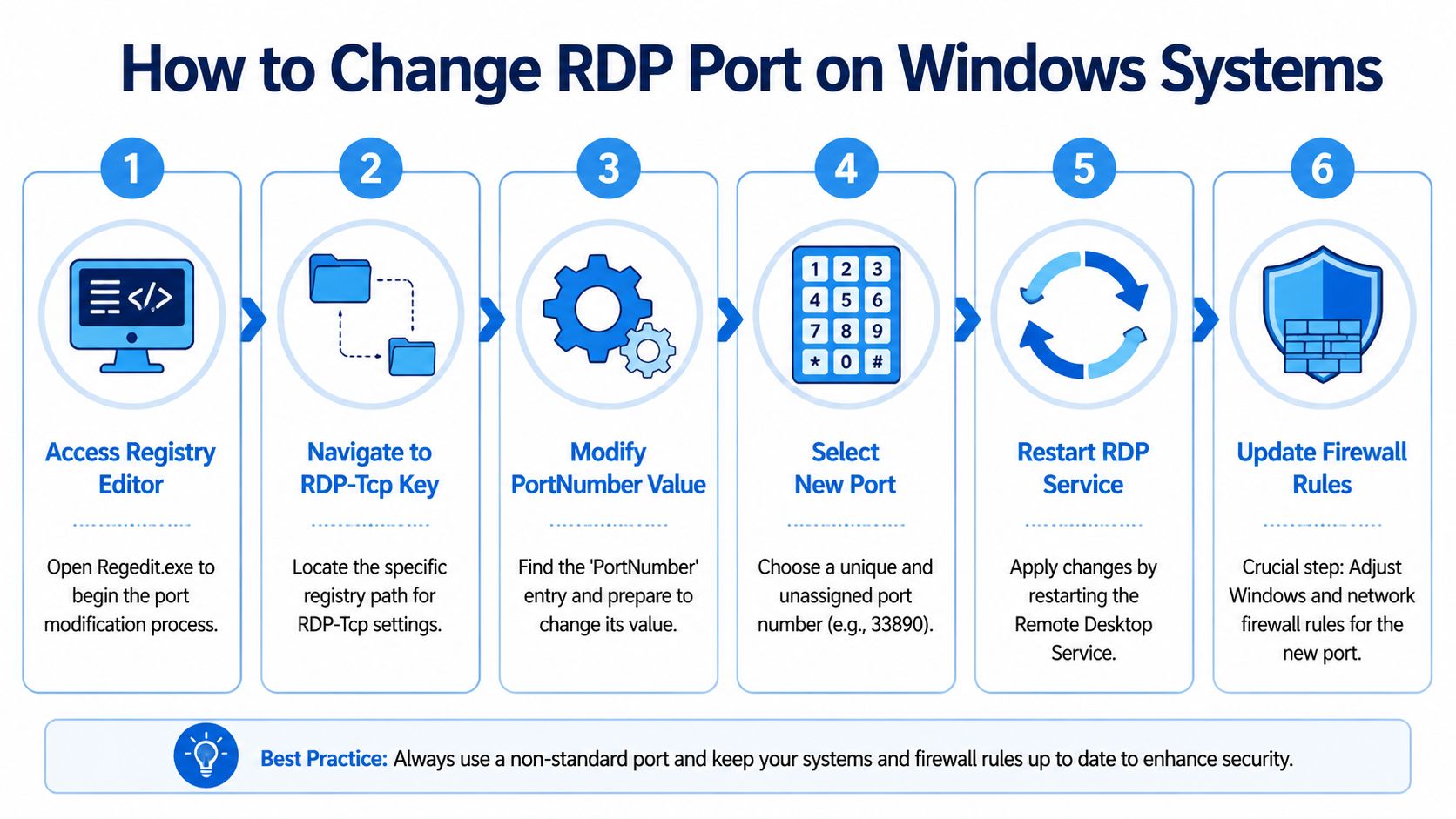
For a single Windows host, go straight to the RDP listener key:
HKEY_LOCAL_MACHINE\SYSTEM\CurrentControlSet\Control\Terminal Server\WinStations\RDP-Tcp
Before touching it, export a backup of that key. Then open PortNumber, switch to Decimal, and set the new port. Use a port that fits your standards and won’t collide with another service.
Registry edits are practical for one machine during a cleanup or client onboarding review. They’re not great when you need consistency across dozens of endpoints.
Use PowerShell for repeatable MSP work
PowerShell is the cleaner option if you want something scriptable through your RMM. Microsoft documents changing the port with:
Set-ItemProperty -Path 'HKLM:\SYSTEM\CurrentControlSet\Control\Terminal Server\WinStations\RDP-Tcp' -Name 'PortNumber' -Value $newPort
That command, followed by a service restart, is a solid fit for managed rollout work, especially when you want to push the change in a controlled way across multiple systems using your existing automation stack. Microsoft’s guidance on changing the RDP listening port on Windows is the source to keep in your runbook.
Here’s the practical MSP version of the workflow:
- Check port availability before changing anything.
- Back up the registry key so rollback is simple.
- Apply the new port through PowerShell or your RMM script.
- Restart the RDP service or schedule a reboot window.
- Verify the listener before closing your session.
Change the port only when you already have another way back in. Console, out-of-band access, a secondary admin path, or someone on-site. Otherwise a small hardening task can become a lockout.
Use Group Policy for domain-wide standards
If the client has a domain and wants consistency, use Group Policy Preferences to push the registry value to managed systems. That gives you a documented, repeatable standard and makes future review easier for the client’s vCISO, GRC lead, or compliance assessor.
This is also where mature MSP operations separate from ad hoc support. A one-off registry tweak fixes one host. A GPO-backed standard becomes part of your baseline hardening package.
A simple comparison helps:
| Method | Best fit | Trade-off |
|---|---|---|
| Registry Editor | One server, urgent fix | Manual and easy to forget |
| PowerShell | RMM deployment, repeatable work | Needs testing and rollback planning |
| Group Policy | Domain-wide standardization | Slower if the client lacks good GPO hygiene |
For risk assessment work, document the new port, the date changed, who approved it, and how access is supposed to work after the update. That sounds basic, but clean documentation prevents support confusion later and gives you a better story during SOC 2, HIPAA, and PCI DSS reviews.
Updating Firewalls and Routers After the Change
Most failed RDP port changes aren’t caused by the registry change itself. They happen because the network path never got updated.
That includes the local Windows Defender Firewall, any perimeter firewall rules, and any NAT or port forwarding rule the client forgot existed. An MSP can save itself a lot of support time by being methodical.
Update the local firewall first
As soon as the new listener is set, create an inbound TCP allow rule for the new port. Then review the existing rule set for old 3389 exposure. If the client no longer needs the default port anywhere, close it.
Keep the scope tight. If the client has stable admin locations, limit the rule to approved ranges or the specific path used for remote administration. A broad allow rule undercuts the whole point of the change.
Check the edge device and any forwarding rules
If the machine sits behind a firewall, router, or cloud security gateway, the external path also needs to match the new port. That’s where a lot of after-hours lockouts begin. The Windows host is ready, but the edge still forwards only to the old destination.
A clean post-change checklist looks like this:
- Create the new inbound rule: Match the new TCP port on the host firewall.
- Review old exposure: Disable or remove the old 3389 rule if it’s no longer needed.
- Update the edge device: Change any port forwarding or access policy tied to the old listener.
- Test from the actual client path: Don’t just test locally from the server itself.
- Document the connection format: Users need the hostname plus the new port.
Most post-change failures happen for a mundane reason: users forget to append the new port in the RDP client, such as hostname:3390. That’s an operational issue, not a security one, but it still becomes your ticket queue.
A good hardening change includes a support plan. If users or admins need a new connection format, write it down where they’ll actually see it.
That’s one reason a broader network architecture review pays off. You catch hidden dependencies before a simple access change breaks a workflow nobody documented.
Real RDP Security Goes Beyond Changing a Port

Changing the port is useful, but it’s still security by obscurity. That’s fine as a speed bump. It’s not enough as a security strategy.
A serious remote access design uses layers. The port change reduces low-effort scanning noise. Other controls decide whether a capable attacker, a stolen credential, or a misconfiguration can still turn into an incident.
What actually improves RDP security
Start with Network Level Authentication. It forces authentication earlier in the process and cuts down some unnecessary exposure before a full session starts.
Then move the access path behind something tighter:
- VPN access: Remote admins authenticate to the VPN first, then reach RDP internally.
- IP allowlisting: Limit who can even attempt a connection.
- Jump boxes or bastion hosts: Centralize administrative access instead of exposing every server.
- Certificate-backed authentication and MFA where available: Reduce the chance that one reused password becomes a breach.
Those controls are easier to defend in front of a client board, a vCISO, or a compliance reviewer. They also fit better into ISO 27001, SOC 2, and HIPAA narratives because they show intentional design, not just a hidden service.
Why isolated changes can create new problems
There’s another side to this. Changing RDP ports can break tools MSPs rely on. It can disrupt Intune auto-remediation, cause Sentinel monitoring agents to fail, and create port mismatch issues in ConnectWise, as noted in guidance on how changing the RDP port affects management tooling.
That’s why the change needs to be part of a system review, not a lone technician task. If your remote management, alerting, and support workflow assumes default behavior, a hidden listener may protect one service while undermining visibility somewhere else.
A practical approach looks like this:
| Control | What it helps with | What it doesn’t solve |
|---|---|---|
| Port change | Reduces low-effort scans | Doesn’t stop targeted access attempts |
| VPN | Hides RDP from the public internet | Doesn’t fix weak admin practices |
| NLA and MFA | Strengthens authentication | Doesn’t replace network segmentation |
| Jump host | Centralizes admin access | Needs monitoring and policy discipline |
If you’re tightening remote support procedures, it also helps to think through how teams handle temporary credentials and securing remote access codes in a structured way. The remote path is only as strong as the human process around it.
The safest exposed RDP service is the one you don’t expose at all.
That’s the core business point. Clients don’t hire an MSP just to make remote access function. They hire you to make it function safely, with fewer incidents, fewer audit findings, and fewer expensive surprises.
Validate Your Hardening with a Penetration Test
Changing the port is a useful hardening move. It’s not proof of security.
The only way to know whether the full remote access path holds up is to test it the way an attacker would. That means validating exposed services, firewall behavior, credential attack paths, segmentation, management tooling impact, and whether an admin account can pivot farther than it should. A real penetration test gives you that answer in a way a checklist can’t.
For MSPs, that matters beyond security. It helps you show clients that hardening work was verified, not guessed. It gives vCISO, GRC, CPA, and compliance stakeholders something defensible for PCI DSS, ISO 27001, SOC 2, and HIPAA conversations. It also supports a better overall enterprise security risk guidance discussion when the client wants to understand where remote access sits inside the broader threat picture.
The strongest version of this for a reseller or service provider is white label pentesting. You keep client ownership. You add affordable, manual pentesting to your stack. You avoid bloated pricing, automated-only testing, and long lead times that make security work hard to sell.
Good pentesting, pen testing, and penetration testing should answer practical questions:
- Can an external attacker still find the service?
- Does the new configuration break anything important?
- Can valid credentials go farther than they should?
- Do remote admin controls stand up to a real-world test?
If remote access is part of your managed offering, validate it with a proper network penetration testing engagement. That turns a basic configuration change into a measurable security service your clients can understand and trust.
If you need a channel-only partner for affordable, fast, manual pentests, our external perimeter testing service delivers white-labeled penetration testing for MSPs, vCISOs, GRC firms, CPAs, and IT resellers. Our certified pentesters hold OSCP, CEH, and CREST credentials, we never compete with our partners, and reports are delivered on a timeline scoped to the engagement. Contact us today to strengthen client security and back up your hardening work with real validation.

.avif)
.png)
.png)
.png)

