
UAC Virtualization is a Windows compatibility feature introduced with Windows Vista in 2006 that redirects file and registry write attempts from protected system locations into a user-specific area, so older software can keep working without full admin rights. In plain English, Windows gives a legacy app its own private place to save data instead of letting it write directly into sensitive system paths.
If you support small business clients, you've probably seen the symptom before. An old line-of-business app installs fine, opens fine, then acts weird when a standard user tries to save settings or update a local file. The user says the app is broken. The vendor says to run it as admin. Your security team says absolutely not.
Understanding what UAC Virtualization is proves useful. It isn't just a Windows trivia item. It affects troubleshooting, endpoint hardening, compliance conversations, and how you interpret a pentest, pen test, or penetration testing finding when a tester flags legacy application behavior.
For an MSP, vCISO, or GRC partner, this matters because UAC Virtualization often points to a deeper issue. The feature itself is a compatibility shim. The underlying issue is the kind of software that still needs it.
Understanding the Need for UAC Virtualization
A common support scenario goes like this. A client has an old line-of-business app that works during install, then starts failing when a standard user tries to save settings or write local data. The vendor's answer is to make users local admins. From a security standpoint, that is the wrong fix. UAC Virtualization exists because Microsoft needed a way to keep some of these legacy applications usable without reopening broad write access to protected parts of Windows.
The feature came in with the shift to least-privilege desktops in the Windows Vista era. A large amount of older software had been written with the assumption that users could write into system locations and protected registry areas. Once Windows started enforcing tighter boundaries, those design shortcuts became operational problems for businesses that still depended on the software.
For MSPs, this usually shows up in exactly the kinds of environments that generate pentest findings. Older accounting packages, manufacturing tools, medical software, and internal utilities often stay in place for years because replacing them is expensive or disruptive. If one of those applications still depends on Windows compensating for outdated behavior, that is not just a support detail. It is a signal that the client has legacy risk sitting on production endpoints.
When someone asks what UAC Virtualization is, the practical answer is simple:
- It helps older applications keep running under newer Windows security controls
- It reduces the need to grant users direct write access to protected system areas
- It often exposes software that was never updated for modern endpoint security expectations
Practical rule: If an application only works reliably when users run it with elevated rights, treat that as an application risk review trigger.
That distinction matters in a penetration test report. The finding is rarely "UAC Virtualization is bad" by itself. The true issue is that the business may still rely on software with weak privilege assumptions, poor write-path handling, or both. For an MSP or vCISO, that creates an opening to explain the trade-off clearly. The compatibility feature may reduce immediate breakage, but it also tells you where technical debt and future hardening work are likely to surface.
How UAC Virtualization Actually Works
A tester logs in as a standard user, changes an application setting, and sees the app save without errors. Later, the admin checks Program Files or the expected registry path and finds nothing changed. That gap is often UAC Virtualization.
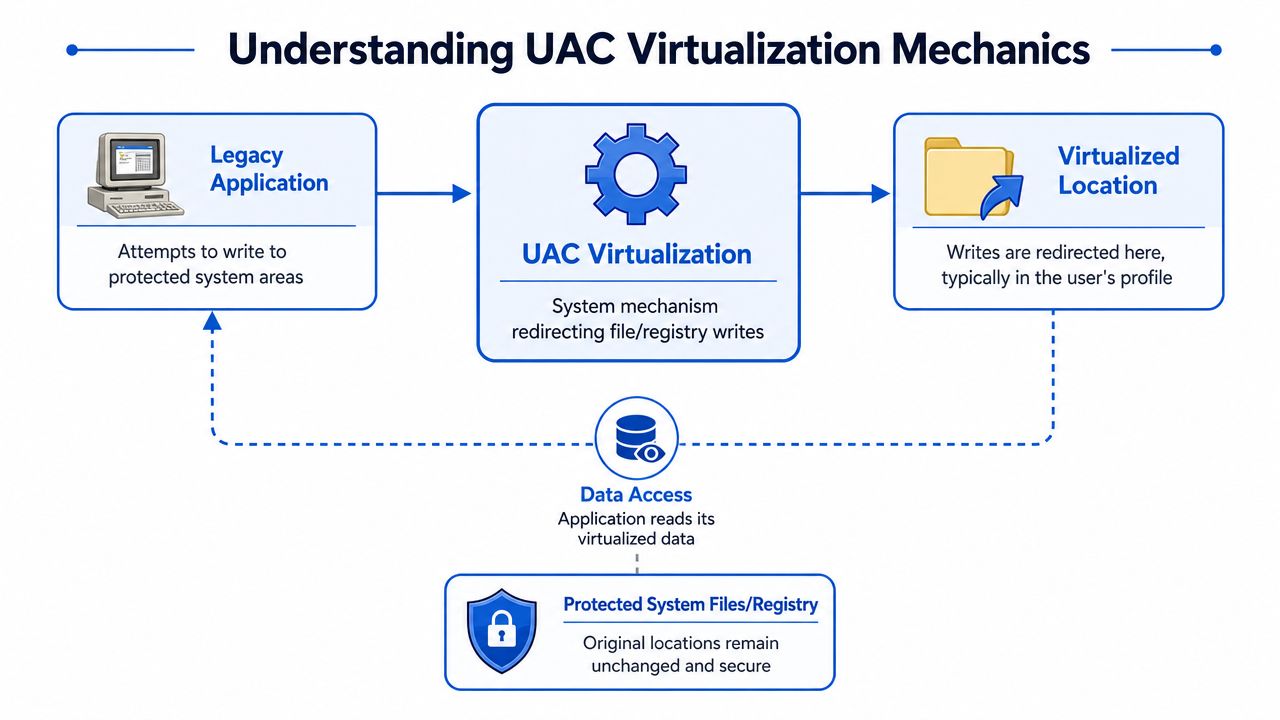
File and registry redirection
UAC Virtualization intercepts write attempts from older, noncompliant applications that try to modify protected locations such as Program Files or certain system registry areas. Instead of allowing a direct write, Windows redirects that change into a per-user location under the user's profile.
The application usually continues as if the write succeeded in the original location. That is the part that creates confusion during support work and during an internal penetration test for Windows environments. The software appears to function normally, but its data is no longer where an admin expects to find it.
In practice, that creates two immediate effects:
- System locations remain unchanged even though the application appears to save data successfully
- User-specific copies of files or settings appear under one profile and not another
This behavior matters because it can hide weak application design. A legacy app may look stable on the surface while still depending on write patterns that would fail under normal modern Windows security controls.
Why user context matters
Virtualization is tied to the user running the process. If User A launches the application and changes a setting, Windows can maintain that redirected data separately from User B's copy. An admin troubleshooting the same app under a different account may see completely different results.
That is why support teams run into inconsistent behavior that seems irrational at first. One user reports that a config file exists. Another user cannot see it. The admin opens the install directory and finds nothing unusual because the actual write happened in a virtualized per-user path.
A few practical effects:
| Situation | What you see |
|---|---|
| User A changes an app setting | User B may not see the same setting |
| Admin tests the app successfully | Standard user may still have different behavior |
| File review in Program Files looks clean | App data may still exist in a virtualized user location |
For MSPs, this is more than a Windows trivia point. If a pentest report shows odd per-user behavior, missing artifacts in protected paths, or application writes that do not land where expected, UAC Virtualization may be part of the explanation. That helps you separate a compatibility mechanism from the deeper issue, which is usually legacy software with outdated privilege assumptions.
Experienced testers and engineers check the actual write path, the user context, and whether the application only works because Windows is redirecting its mistakes. That is the difference between closing a ticket and identifying a real security finding.
Detecting UAC Virtualization During a Penetration Test
Most automated scanners won't give you useful context here. They might spot weak permissions, old software, or suspicious paths, but they usually won't explain that Windows is virtualizing writes for a legacy process. That takes observation.

What a manual pentester looks for
During a manual pentest, pen test, or penetration test, a tester will often validate how an application behaves under a standard user context. Tools like Process Monitor are useful because they show when an app tries to write into a protected path and Windows redirects the operation.
This is one reason manual work still matters. A certified tester with OSCP, CEH, or CREST experience can tie a technical artifact to a business risk. A low-cost scanner alone usually can't do that.
Common signs include:
- Unexpected write behavior where an app appears to save into a protected location but the actual write lands elsewhere
- Per-user data separation that creates inconsistent behavior between test accounts
- Legacy install patterns where the software assumes it can modify files under its install directory
- Registry anomalies that only appear when you inspect writes in context
Why it appears in a pentest report
UAC Virtualization usually isn't reported as "Windows is vulnerable." That's too simplistic. More often, it's noted because it signals a legacy application dependency, weak application design, or a path an attacker may abuse after initial access.
If your clients want a deeper look at workstation and server behavior, internal penetration testing is often where these application-level quirks surface. That's especially true when testers move beyond port checks and interact with installed software.
Field note: When I see UAC Virtualization in scope, I don't treat it as the main issue. I treat it as a clue. Old software that relies on compatibility shims often has other weaknesses nearby.
That distinction helps when you explain findings to a client. A report might flag virtualized behavior because the actual risk isn't the redirect itself. It's the outdated app, the poor privilege assumptions, the hidden data path, or the operational blind spot created by all of the above.
Security Risks and Compliance Implications
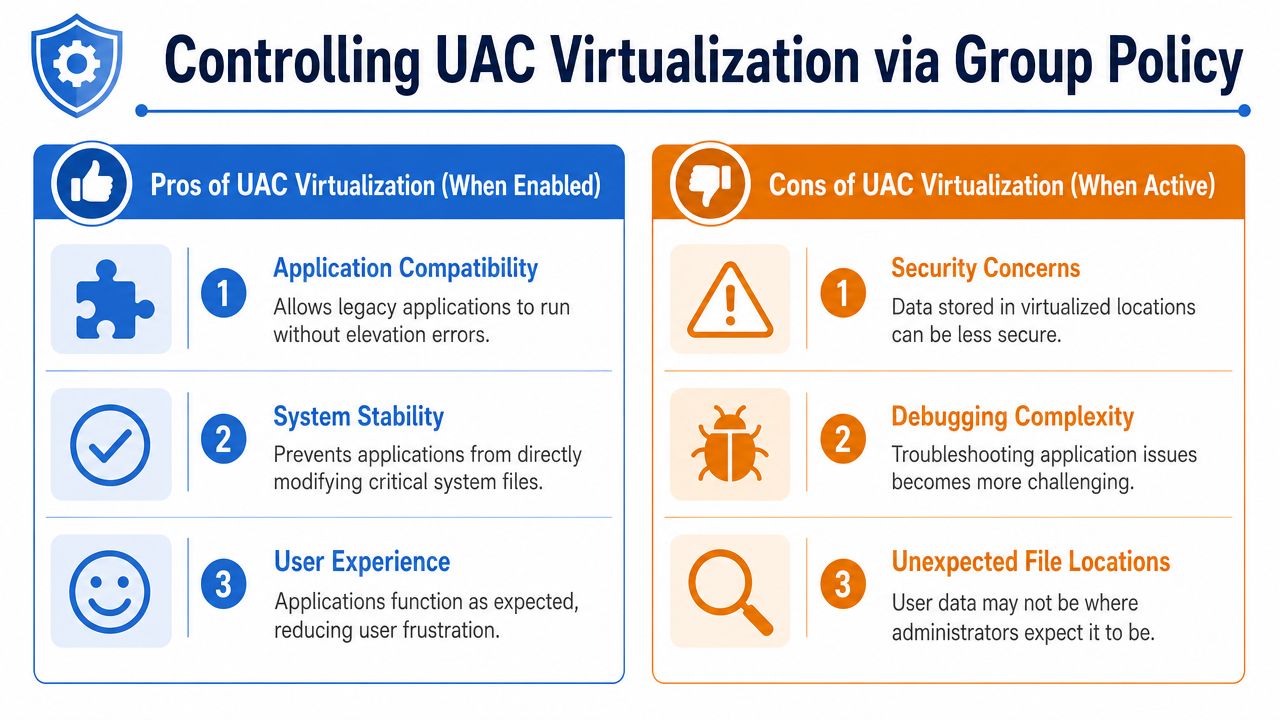
UAC Virtualization creates a weird security trade-off. It reduces the need to hand out admin rights just to keep old software running, which is good. But it can also hide where data is being written, which makes monitoring, troubleshooting, and control validation harder.
For attackers, hidden or unexpected storage locations can be useful. If defenders only check the obvious install path or expected registry area, they may miss user-specific redirected content. That's not a guaranteed exploit by itself, but it does create room for persistence, confusion, and missed detections.
What can go wrong in practice
Significant risk shows up when teams make bad assumptions.
- Admins trust the install directory and assume it reflects the current state of the app
- Security tools focus on common paths while redirected user locations get less attention
- Help desk teams miss root cause because the app behaves differently for each user
- Legacy software remains in production long after the business forgot it needed special handling
That kind of confusion matters in compliance work. In frameworks like SOC 2, HIPAA, PCI DSS, and ISO 27001, teams are expected to understand where sensitive data lives, who can modify it, and how changes are controlled. Unexpected file redirection can complicate that story.
Why GRC and vCISO teams should care
If your client needs better language for explaining audit pressure around control visibility, this overview of Security compliance reporting requirements is a useful companion resource. It helps frame why undocumented system behavior and unclear data locations create reporting friction.
Legacy compatibility features aren't automatically a compliance failure. Failing to document them, monitor them, or account for them during control reviews is where trouble starts.
For a vCISO or GRC partner, the right message is simple. UAC Virtualization can make an environment harder to reason about. When a penetration testing report flags it, the next question shouldn't be "Can we ignore this?" It should be "What old application is forcing Windows to behave this way, and what else are we missing?"
Managing UAC Virtualization with Group Policy
You can control UAC Virtualization through Windows policy, but this isn't a checkbox decision you make in a vacuum. Turning it off may tighten behavior. It may also break the one old app the client still uses every day.
A practical way to approach policy changes
Before you change anything, identify which applications still depend on the feature. Don't disable it across endpoints first and ask questions later. That creates avoidable outages.
A safer workflow looks like this:
- Inventory the legacy apps that still run on user workstations or shared systems.
- Test under standard user accounts to see whether the software depends on redirected writes.
- Review business impact with the application owner, not just IT.
- Decide whether to modernize, isolate, or retire the application.
- Adjust policy intentionally after you've confirmed the blast radius.
If your team needs a refresher on navigating Windows policy settings, this guide to the Local Group Policy Editor is a helpful reference point.
What works and what doesn't
Some approaches usually work well:
- Containment around the app if the software can't be replaced yet
- Documentation for support staff so they know where the app really writes data
- Phased testing before broad policy rollout
- Compensating controls around systems that must keep legacy software
Other approaches usually fail:
- Blanket disablement with no application testing
- Permanent exceptions with no owner
- Telling users to run as admin because it's "easier"
- Ignoring it because the app still launches
Decision test: If disabling UAC Virtualization would break the business, the problem is not the policy. The problem is the application's dependency on old privilege assumptions.
For MSPs and reseller partners, advisory value emerges through such actions. You're not just changing a setting. You're helping the client weigh security, uptime, support burden, and compliance obligations in one decision.
Your Partner for Affordable White Label Pentesting
The value of a real pentest isn't just finding obvious flaws. It's explaining odd platform behavior, legacy dependencies, and the security meaning behind technical details like UAC Virtualization.
For MSPs, vCISOs, CPAs, and GRC firms, that matters when clients ask hard questions tied to SOC 2, HIPAA, PCI DSS, or ISO 27001. You need more than an automated scan. You need a manual penetration testing partner who can tell the difference between a compatibility layer, a misconfiguration, and a real attack path.
White label penetration testing gives resellers a way to deliver that under their own brand without building an internal testing team. MSP Pentesting provides channel-only, white-labeled pentest services across internal networks, web applications, mobile apps, cloud environments, and other scopes, using certified testers with OSCP, CEH, and CREST backgrounds.
That model fits firms that need affordable, fast, manual pentesting without competing against their own service business. It also makes it easier to turn technical findings into practical remediation plans your clients can act on.
If you need a channel-only partner for affordable, manual, white-labeled pentesting that helps your team explain real risk clearly, contact us today about pentests that carry your logo.
.png)
.avif)
.png)
.png)
.png)

