
A client opens a ticket. Command Prompt won't launch, a script fails, or sc throws an access error. Your technician fixes it, closes the ticket, and moves on.
That's the wrong mindset.
CMD access denied is often a small technical symptom of a larger control problem. In an MSP environment, that means one of three things is usually happening. The client has a broken permissions model, a security product is blocking legitimate admin activity, or a policy was deployed without anyone thinking through operational impact.
That matters because recurring access failures aren't just help desk noise. They're a clean entry point into a broader risk assessment, a conversation about compliance, and sometimes the first sign that the client needs deeper validation through pentest, pen test, or penetration testing work.
Understanding the CMD Access Denied Error
Most MSPs see this error and assume the user just needs admin rights. Sometimes that's true. A lot of the time, it isn't.
A practical first step is to verify true elevation. Launch Command Prompt with Run as administrator, confirm the UAC prompt was accepted, and confirm the account is in an administrator role, because access-denied failures are often a permissions or policy enforcement issue rather than a shell issue, especially in managed environments, as shown in this elevation-focused remediation workflow.
Why MSPs should care
When one user can't open CMD, that's a fix. When multiple users, scripts, or support staff hit the same wall, that's a control failure.
That failure has business value if you know how to frame it. It gives you a reason to review endpoint baselines, privilege assignments, security tooling, and remote support workflows. Those reviews lead to stronger managed services, cleaner documentation, and better positioning for SOC 2, HIPAA, PCI DSS, and ISO 27001 conversations.
Practical rule: If the fix is "run it as admin" more than once, stop treating it like a one-off ticket.
What the error usually means
The phrase "access denied" sounds simple, but Windows rarely means one simple thing. It can point to local user rights, ACL problems, service-control restrictions, centrally pushed policy, or security tooling blocking execution.
For an MSP owner, the profitable move is to standardize the response. Your team should know when to close the ticket fast and when to escalate the issue into a security review, documentation update, or automation redesign.
That shift matters for resellers, vCISO practices, GRC advisors, and IT firms trying to expand into security services. Small admin errors often expose bigger process gaps. Those process gaps are where high-value service work starts.
Diagnosing Common Root Causes of Access Denial
Fast diagnosis beats random fixes. If your techs guess, they burn time and create inconsistent outcomes across clients.
Use a short triage model first.
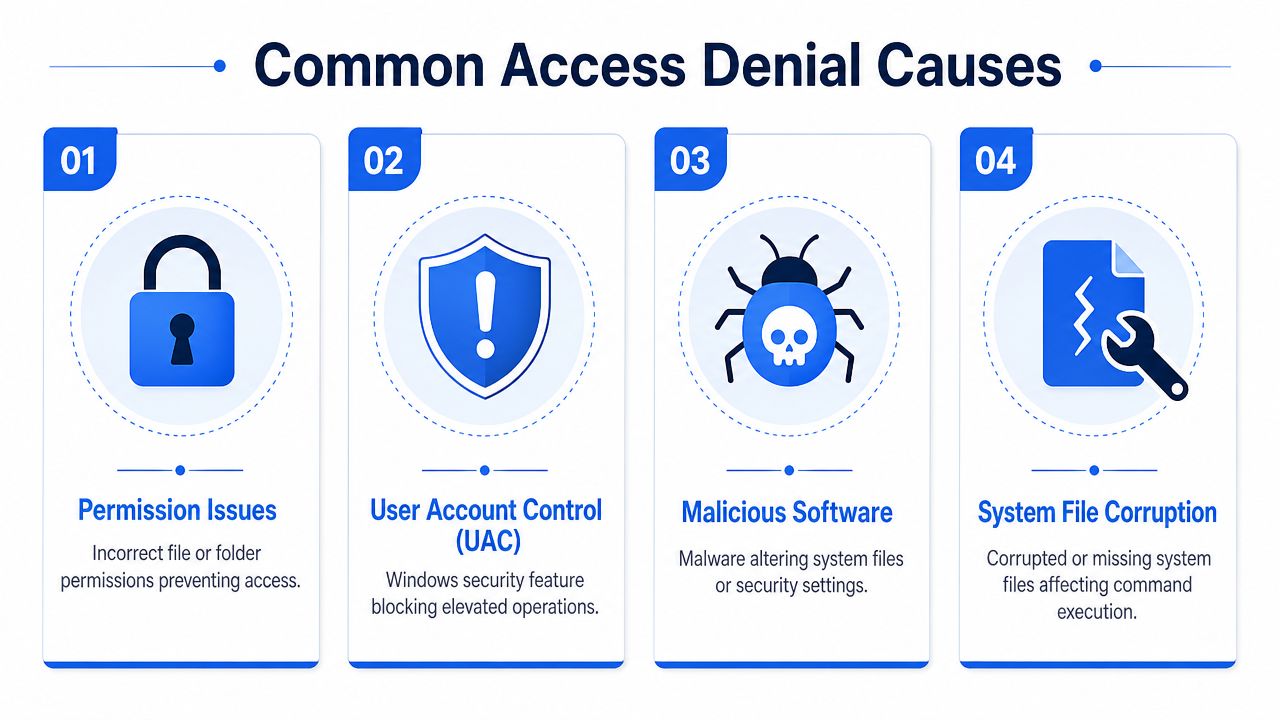
Four causes worth checking first
Enterprise security policy or antivirus block. A common cause of CMD access denial is that enterprise policy or antivirus software blocks cmd.exe, which shows the issue is often policy enforcement at the OS security layer rather than a local file-permission problem, as documented in this cmd.exe blocking example.
User Account Control friction. The user may have admin group membership but still be operating in a standard user session. That creates the classic situation where the tool exists, the syntax is right, but the token doesn't have the privileges needed to execute the action.
Broken NTFS permissions or ownership. If access control lists drift, inherited permissions break, or ownership changes unexpectedly, users and support staff can lose access to core files or folders. That usually shows up after migrations, rushed remediation, or poorly tested scripting.
System corruption or malicious tampering. If the environment behaves inconsistently across commands, shells, or administrative tasks, you may be looking at broader OS integrity problems. That's where simple troubleshooting should give way to validation and deeper review.
If the same denial appears after a policy change, a new security tool rollout, or a baseline update, assume process failure before you assume user error.
CMD access denied quick triage table
| Symptom | Likely Cause | Quick Triage Step |
|---|---|---|
| CMD won't open at all | Security policy or AV block | Check whether cmd.exe is blocked in endpoint protection or enterprise policy |
| CMD opens but admin tasks fail | Non-elevated session | Reopen with Run as administrator and confirm UAC approval |
| File or folder operations fail | ACL or ownership issue | Inspect permissions and inherited access on affected paths |
| Script works locally but not through tooling | Remote execution restrictions | Review automation context, delegated rights, and endpoint policy |
| Multiple users break at once | GPO or security baseline issue | Compare impacted devices against recent policy changes |
When this pattern keeps surfacing in Windows admin workflows, pair the ticket review with a broader identity and permissions review. A focused Active Directory audit for MSPs often exposes the same root cause that the Command Prompt error is hinting at.
Essential Remediation Commands for Fast Fixes
Once you've identified the problem category, fix it cleanly. Don't hand technicians vague instructions like "check permissions." Give them commands, scenarios, and stop points.
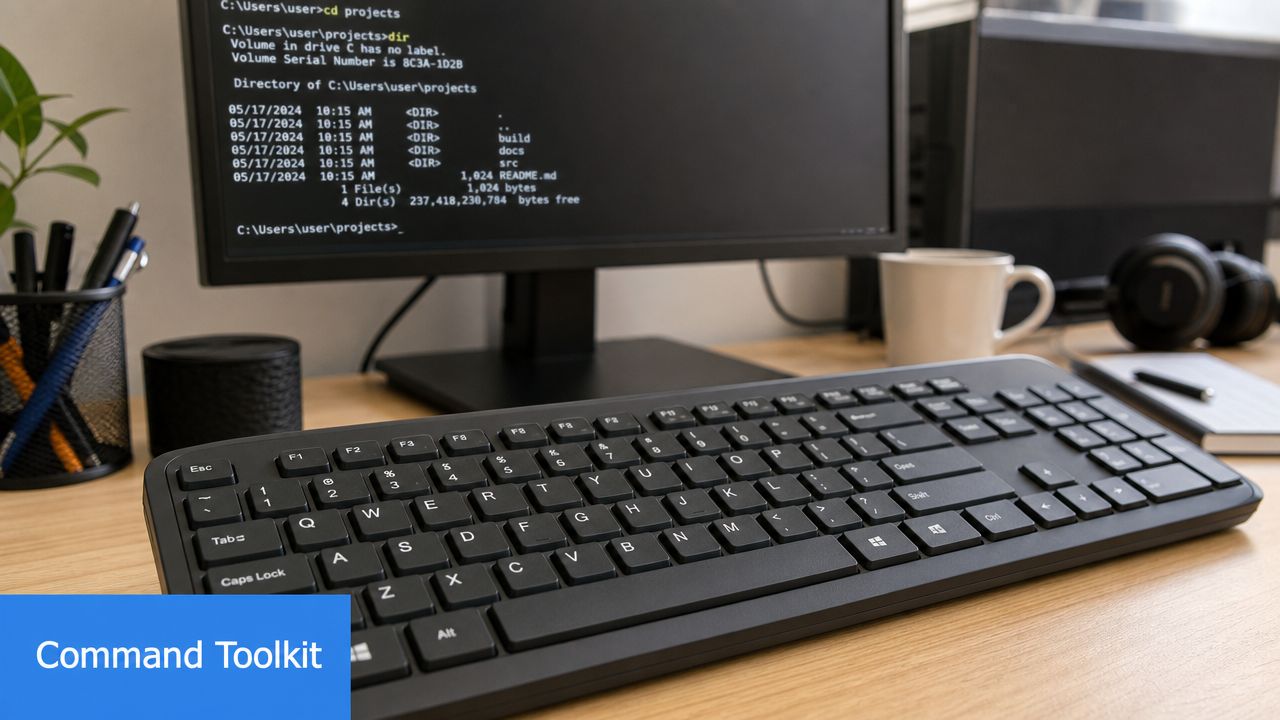
Start with an elevated prompt
This is the first check because everything after it depends on having the right token.
Use Run as administrator. Then confirm the user accepted UAC and belongs to an administrator role. If that isn't possible in the normal workflow, use the built-in Administrator account for controlled testing, then disable it after troubleshooting.
net user administrator /active:yesUse that only for testing and recovery. Don't normalize it as a daily support shortcut.
Reset broken permissions carefully
For systemic access-denied problems, Windows permissions can often be reset with the built-in icacls command from an administrator Command Prompt. Documented examples include icacls Pictures /reset /t /q and the more sweeping icacls C:\ /reset /T /C /Q, as shown in this Windows access reset guide using icacls.
icacls Pictures /reset /t /qUse that when the issue is limited to a specific directory tree.
icacls C:\ /reset /T /C /QUse that only when you're dealing with widespread ACL drift and you've confirmed the client understands the scope. This is a blunt tool. Treat it like one.
Take ownership when ownership is the problem
If a user or technician can't modify a file because ownership is wrong, takeown can help.
takeown /f "C:\Path\To\Target" /r /d yThat command is useful when ownership blocks access changes. Follow it with a permission review instead of assuming ownership alone solves the operational issue.
Field advice: Ownership fixes the door. ACLs decide who walks through it.
Test service-control failures correctly
Service operations are where junior techs waste time. They test sc, get error 5, and start blaming syntax.
For service-control failures like OpenService failed 5: Access is denied, the key distinction is whether the shell is running with administrative privileges. In a documented example, a standard prompt failed, but rerunning Command Prompt as administrator allowed the service operation to proceed, as shown in this service-control elevation example.
sc query wsearchsc stop wsearchIf that fails in a normal shell, rerun in an administrator shell before you troubleshoot anything else.
Build a repeatable command playbook
Your team should maintain a short internal runbook with approved commands, rollback notes, and escalation points. If your technicians need command-line refreshers across platforms, this primer on mastering core Linux commands is a practical resource because many MSP teams jump between Windows endpoints, cloud hosts, and Linux systems every day.
If the problem affects remote support workflows, pair command remediation with operational process fixes. A simple remote restart computer workflow for support teams can expose whether your RMM and delegated admin processes are aligned or patched together.
Fixing Issues with Group Policy and Registry
Some CMD failures aren't local at all. They're being pushed from above.
That's where MSPs either look smart or lose time. If multiple devices show the same behavior, stop editing one machine and start validating policy.
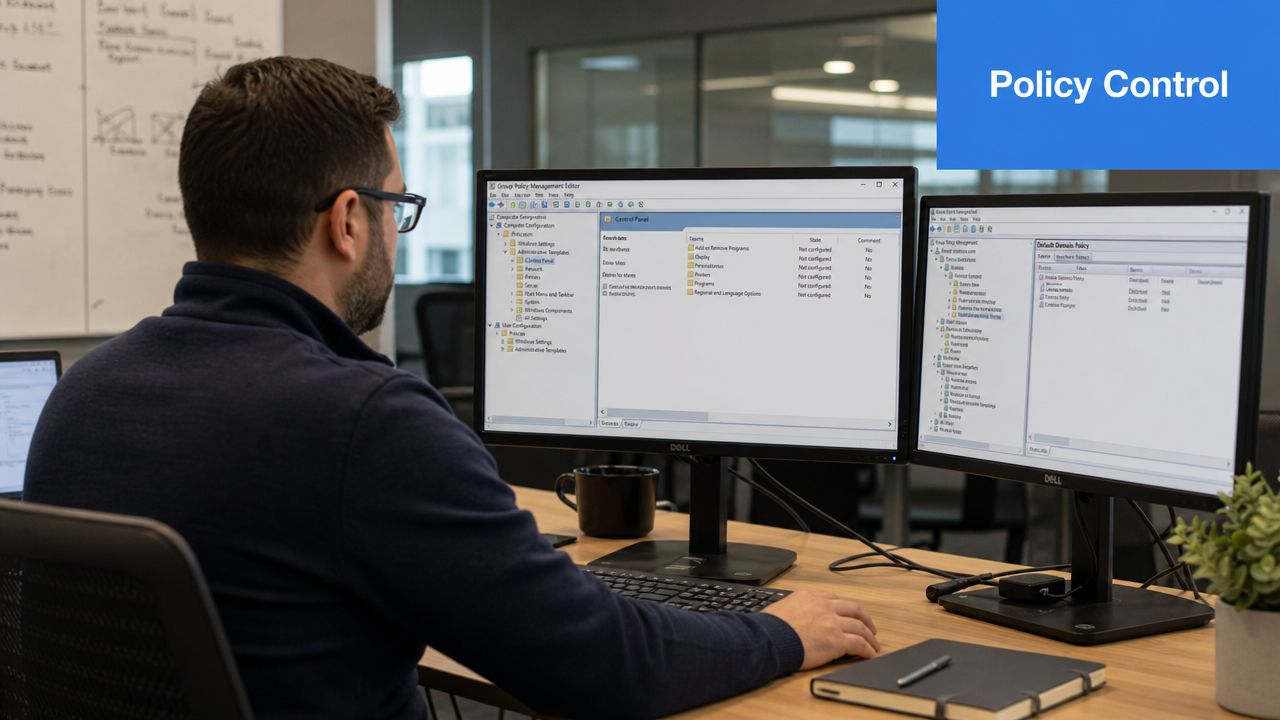
Check policy before touching the endpoint
In domain-managed environments, inspect the Group Policy settings that restrict Command Prompt access and compare the result against the client's intended admin model. This isn't just troubleshooting. It's policy validation.
If your team needs a refresher on how Windows policy settings work in smaller environments, this guide to the Local Group Policy Editor is a useful operational reference.
Look for policy settings that disable Command Prompt, restrict script execution, or limit administrative tooling. Also review whether security products are enforcing equivalent restrictions outside GPO.
Review registry settings safely
If policy appears correct but behavior still suggests a block, review the Windows Registry settings tied to Command Prompt restrictions. Make changes only after exporting the existing key or taking a configuration backup.
This work should stay controlled and documented. Random registry edits by help desk staff create bigger messes than the original access error.
Policy troubleshooting is not a desktop support chore. It's a governance check.
Service-control failures are a good clue here. If sc throws access denied in one prompt but succeeds when rerun as administrator, you're looking at an authorization boundary, not a broken command. That distinction matters because it tells you whether to adjust policy, delegated rights, or technician workflow.
Proactive Hardening for MSP Client Systems
Reactive fixes keep tickets moving. Proactive hardening protects margin.
If clients keep generating CMD access denied tickets, they're telling you their environment has friction between security controls and real operations. That's your chance to turn cheap support work into recurring security improvement work.
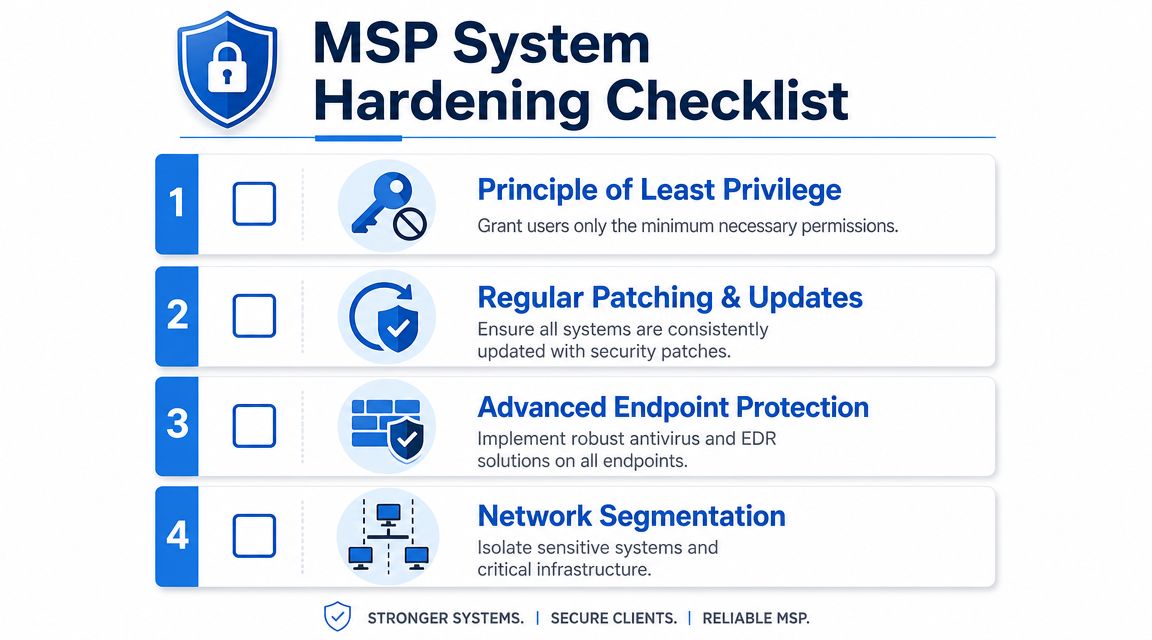
What smart MSPs standardize
- Least privilege with intent: Don't give broad admin rights just to stop tickets. Define which users, technicians, scripts, and RMM jobs need elevation, then document the approved path.
- Application control that matches operations: If you use allowlisting or endpoint controls, review whether they block legitimate admin tools like
cmd.exein support scenarios. - Audit visibility: Track repeated denials tied to users, devices, and automation jobs. Those patterns often reveal weak delegation design or policy drift.
- Automation redesign: In enterprise and MSP operations, access denied often appears in scripts or RMM tools where least-privilege policies intentionally block access, which means the right fix may be policy exemption or redesigning the automation path rather than local elevation, as described in this enterprise access-denied troubleshooting guidance.
Clients don't buy hardening because it's elegant. They buy it because it reduces friction, lowers avoidable support effort, and strengthens their position for SOC 2, HIPAA, PCI DSS, and ISO 27001 reviews.
That's also where GRC firms, vCISO advisors, and MSPs can work together well. One side defines the control objective. The other side builds the operational model that works.
When You Need a Deeper Penetration Test
A single CMD issue isn't a crisis. A pattern is.
If you see repeated access failures across multiple endpoints, weird privilege behavior, broken admin tooling, blocked scripts, or signs that security controls are acting unpredictably, stop treating the problem like desktop support. That kind of pattern can point to weak privilege design, unsafe exceptions, or control gaps an attacker would love.
That's when a pentest, pen test, or penetration test becomes the right move. A solid manual pentesting engagement can validate whether the client's permissions model, endpoint controls, delegated administration, and internal pathways are secure or just patched enough to keep tickets down. For clients with SOC 2, HIPAA, PCI DSS, and broader compliance obligations, that's not optional.
For MSPs and other reseller partners, MSP Pentesting offers white label pentesting services across internal, external, cloud, web, mobile, and social engineering scopes, delivered by OSCP, CEH, and CREST certified pentesters. The fit is straightforward for firms that need affordable, fast, channel-only penetration testing without competing against their own client relationships.
If you're an MSP, vCISO, GRC firm, CPA, or IT reseller that wants a channel-only partner for affordable, manual pentesting and white-labeled reporting, our team can run pentests delivered in your name for your next client assessment, compliance engagement, or penetration testing project.

.avif)
.png)
.png)
.png)

