
A client needs a shared folder mapped across multiple endpoints, a script needs to pull from a file share, or a scheduled task keeps failing because the drive letter exists for one session but not another.
This is why cmd map network drive still matters.
Most articles stop at a one-line net use example and call it a day. That's lazy. If you're an MSP, vCISO, GRC advisor, or compliance-focused reseller, you need more than syntax. You need repeatable automation, fewer support tickets, and fewer security mistakes that blow up SOC 2, HIPAA, PCI DSS, or ISO 27001 conversations later.
Why MSPs Still Use CMD to Map Network Drives

GUI mapping is fine for one user on one machine. It falls apart when you need consistency across fleets, client sites, and scripted deployments. MSPs still use Command Prompt because the command line is repeatable, scriptable, and easy to audit.
Microsoft has supported mapped drives in Windows for a long time through both File Explorer and the net use command, and CompTIA notes options like /persistent:yes; Microsoft also supports persistent mappings in PowerShell with New-PSDrive -persist, which matters because mapped drives remain a core Windows method for turning a UNC path into a local drive letter in this Windows drive mapping overview.
Why the command line still wins
When you map a drive in CMD, you can push the same logic through RMM tools, login scripts, scheduled tasks, or deployment workflows. That gives your techs one standard instead of five slightly different habits.
It also lines up with the kind of structured endpoint operations you'd expect from mature device management software practices. If your team can't standardize something this basic, bigger automation projects will turn into a mess.
Practical rule: If a task needs to happen more than once, stop clicking through menus and script it.
Here's where MSP owners should care. A mapped drive isn't just convenience. It's access control, user context, credential handling, and operational trust. If a file-share workflow breaks during onboarding, patch deployment, or a compliance evidence pull, your client doesn't care that the syntax was technically correct. They care that your process failed.
What mapped drives actually do
A mapped drive translates a network share into a drive letter your users and applications can access more easily. That old model still matters because many business apps, scripts, and user workflows still expect drive letters.
- Shared application resources: Legacy line-of-business apps often still point to a lettered drive.
- User familiarity: Staff understand
S:faster than a long UNC path. - Script compatibility: Batch files and some automation jobs are easier to maintain with predictable drive letters.
That's why this is still operationally relevant. Not glamorous. Just necessary.
Mastering the Basic Net Use Command Syntax
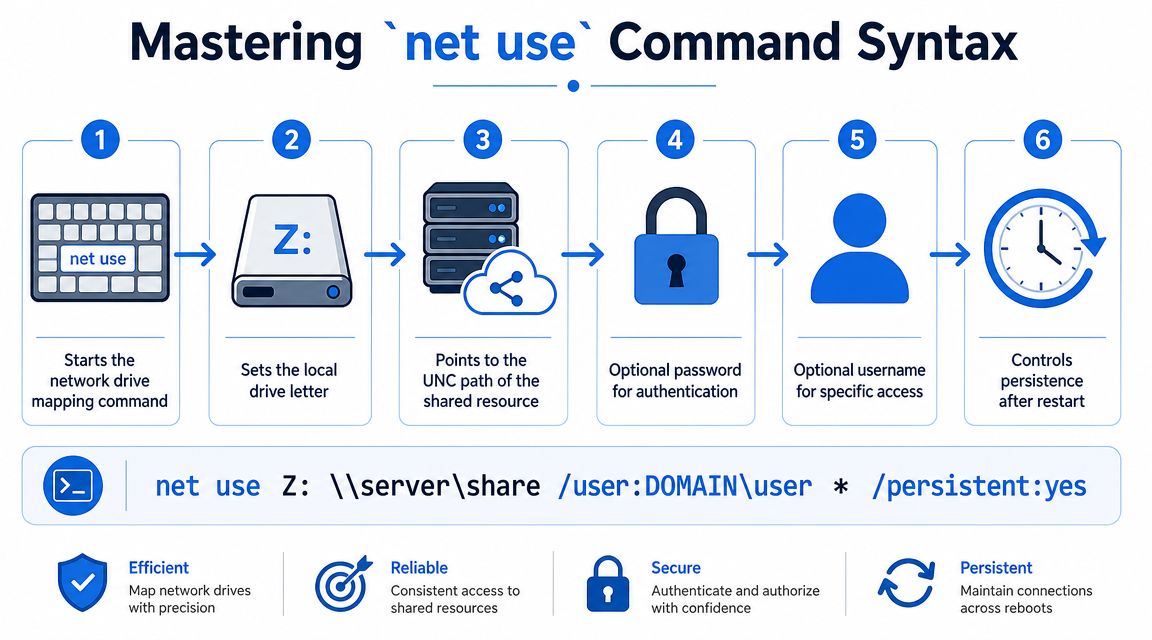
The best-supported workflow for Cmd map network drive is still net use with a UNC path, a free drive letter, and /persistent:yes if you want it to survive logon or reboot; you can verify active mappings by running net use with no additional arguments, as outlined in this step-by-step net use guide.
The command you actually need
The core format is simple:
net use [drive-letter:] \\server\share
Example:
net use Z: \\FILESERVER01\Public
That tells Windows to assign the Z: drive letter to the Public share on FILESERVER01.
The basic commands worth memorizing
You don't need a giant cheat sheet. You need a few commands you can trust.
TaskCommandMap a drivenet use Z: \\FILESERVER01\PublicMake it persistentnet use Z: \\FILESERVER01\Public /persistent:yesRemove one mappingnet use Z: /deleteList current mappingsnet use
If your techs can't explain the difference between a local path and a UNC path, they're not ready to automate client file access.
Common syntax mistakes
Most failures come from sloppy input, not broken Windows.
- Wrong path format
Use a proper UNC path like\\server\share. If you don't,net usecan't do its job. - Bad drive-letter choices
Pick a free letter. Don't assume the same endpoint image always has the same available drives. - No verification step
Runnet useafter mapping. Don't trust a script just because it didn't throw an obvious error.
Junior techs lose time by treating drive mapping like a one-off desktop task. In a managed environment, it's an automation primitive. Small difference in attitude. Huge difference in outcomes.
Creating Persistent Mappings with Credentials
A drive that disappears after sign-in is noise. If a user or script depends on it, you want predictable behavior. That's why /persistent:yes matters.
Use this pattern when the mapping should return after logon:
net use X: \\SERVER\SHARE /persistent:yes
That's the practical baseline for recurring access. If you skip persistence without a reason, you're creating future tickets.
When credentials enter the picture
Some shares require credentials different from the logged-in user context. net use supports that with /user:.
Example:
net use X: \\SERVER\SHARE PasswordHere /user:DOMAIN\username /persistent:yes
That works. It's also where a lot of MSPs start making bad security decisions.
Field advice: A script that contains reusable credentials is no longer just an automation asset. It's a secret storage problem.
If you're still dropping passwords into batch files, you're building fragility into the client environment. That's not just messy sysadmin work. It's a control issue that can create ugly findings during risk assessment, SOC 2, HIPAA, or PCI DSS reviews.
Better operational choices
You don't always need to hardcode credentials. In many environments, it's cleaner to run the process in the right security context so the account already has access to the share.
Use this checklist when you're deciding how to map protected shares:
- Prefer least-privilege accounts: Give the script or task only the share access it needs.
- Separate user access from service access: Don't make one account do everything.
- Document the dependency: If a backup job or application relies on a mapped drive, record that relationship.
- Review authentication exposure: If credentials must be stored or passed, treat that as a security control decision.
This also overlaps with legacy authentication risk. If your file-share workflows still lean on older Windows authentication patterns, your team should understand the security tradeoffs around NTLM in Windows environments.
A blunt recommendation
For one-off user access, File Explorer is fine. For recurring business processes, use a script. For sensitive environments, avoid plaintext credentials whenever possible and assign the right access to the right account. Convenience is not a security model.
How to Troubleshoot Common Drive Mapping Errors
The nastiest drive-mapping issue is the one that looks random. The user sees the mapped drive in File Explorer, but the admin Command Prompt doesn't. Techs waste time blaming the script when the underlying problem is session separation.
Microsoft documents this clearly. Drives mapped in a normal user session are not available in an administrator Command Prompt because UAC creates separate filtered and higher-privilege tokens. Microsoft's documented workarounds are to change UAC policy, remap the drive inside the administrator session, or use the EnableLinkedConnections registry entry, which is why this keeps showing up in “it worked in Explorer but not in CMD” troubleshooting in Microsoft's mapped drive UAC guidance.
The elevated prompt problem
This is not a weird bug. It's Windows doing exactly what it was designed to do.
If your script runs as an administrator, map the drive in that same administrative context. Don't assume a user-session mapping will carry over. That assumption burns time and creates false troubleshooting trails.
A lot of this behavior also makes more sense once your team understands Windows policy handling and user context through tools like the Local Group Policy Editor.
Run the mapping where the process runs. User session and elevated session are not the same thing.
Fast triage checklist
When a mapping fails, don't poke around randomly. Check the basics in order.
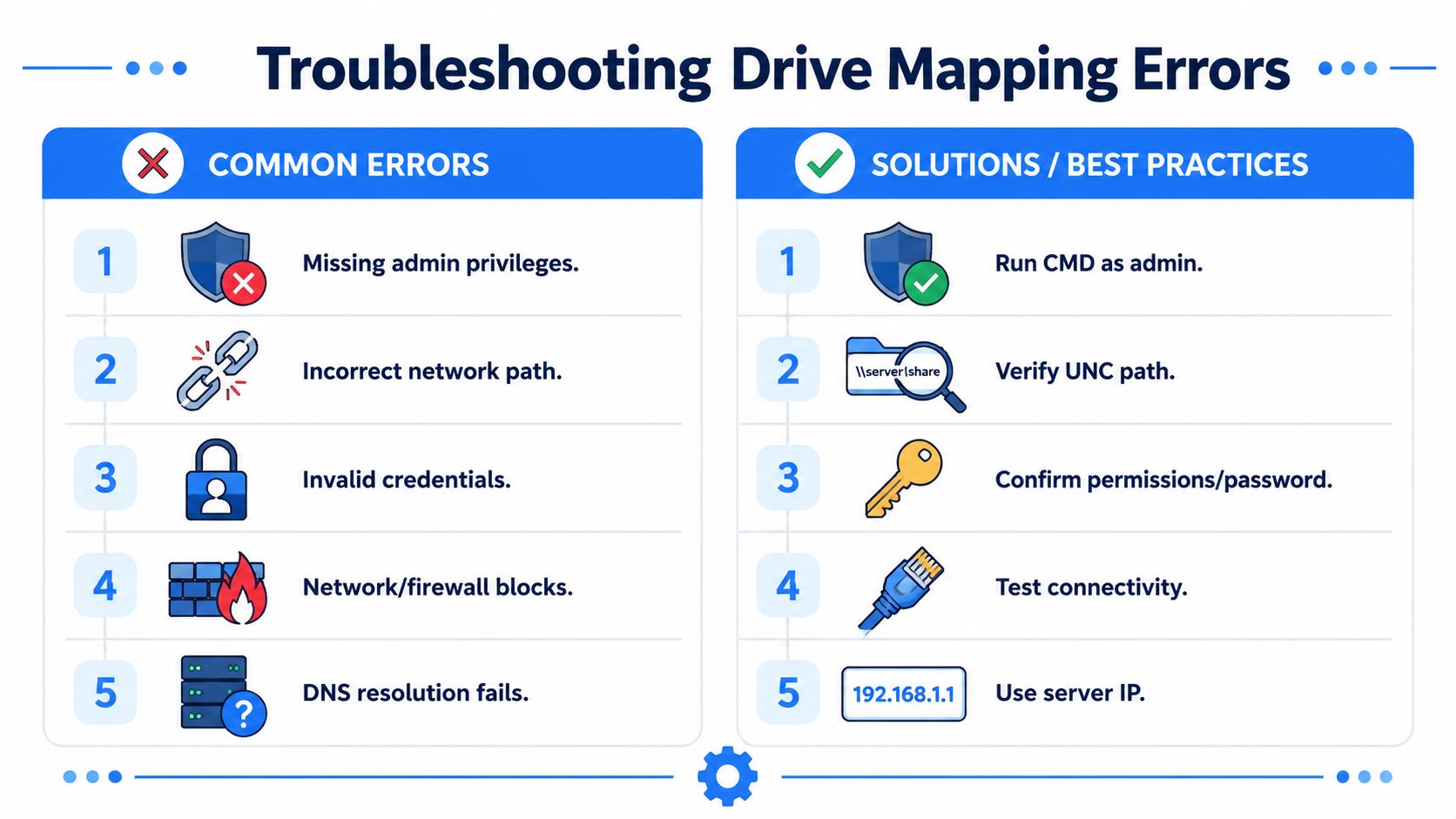
- Verify the UNC path: Typos are still the most common self-inflicted problem.
- Confirm the account context: Who is running the command matters as much as the command itself.
- List active mappings: Use
net useand see what Windows thinks is connected. - Remove stale connections: Old mappings can interfere with new ones.
- Check access permissions: A successful path doesn't mean the account has rights.
What common errors usually mean
You'll see patterns.
SymptomLikely issueBest responseWorks in Explorer, fails in admin CMDSeparate UAC token contextRemap in elevated sessionPath not foundBad UNC path or connectivity issueVerify share path and access routePassword rejectedWrong credentials or wrong account formatValidate account and secretMapping disappears laterNot persistent or wrong logon contextReview /persistent:yes and execution method
Most MSPs don't need more tools here. They need better discipline. Stop treating drive mapping as a desktop support nuisance and start treating it like an identity-and-context problem.
Automation and Security Best Practices for MSPs
If you manage clients in regulated environments, drive mapping choices are part of your security story. Not the whole story, but part of it. A sloppy script can expose credentials, break data access, or create weird privilege paths that hurt trust during a compliance review.
That matters in SOC 2, HIPAA, PCI DSS, and ISO 27001 conversations because clients expect controlled access, not improvised admin habits.

What good MSP hygiene looks like
You don't need fancy theory here. You need standards your team follows.
- Use least privilege: Give users, service accounts, and automation only the share access they need.
- Avoid plaintext secrets: If a batch file contains credentials, assume it will eventually be exposed to the wrong person.
- Match context to task: User logon mapping, privileged script mapping, and scheduled task mapping are different use cases.
- Document dependencies: If an app, backup process, or line-of-business workflow relies on a mapped drive, write it down.
That same mindset applies to the broader work of protecting your business network. Drive mapping sounds small until it touches authentication, file access, and operational resilience.
Why this connects to pentesting
Basic sysadmin work intersects with security validation. A pentest, pen test, or full penetration testing engagement often uncovers weak scripting habits, over-permissioned shares, and credential exposure that teams normalized because “it's just internal.”
For MSPs, vCISOs, resellers, and GRC advisors, that's a real business issue. If you're offering guidance around compliance, risk assessment, or secure operations, you need to know whether your automation choices hold up under scrutiny. That's why white label pentesting, manual pentesting, and affordable penetration test support matter. They help you validate what your scripts, policies, and controls expose.
The attacker doesn't care that your mapped drive was created for convenience. They care whether it gives them access.
Strong operations and strong security aren't separate tracks. In mature client environments, they're the same job done properly.
If you support clients that need better security validation around automation, internal access, and compliance controls, our white-labeled pentesting service can help. We're a channel-only partner for MSPs, vCISOs, and resellers, with OSCP, CEH, and CREST-certified pentesters delivering affordable, fast, white label pentesting, manual pentesting, and broader penetration testing support without competing for your client relationship. Contact us today to learn more.

.avif)
.png)
.png)
.png)

