
You're on a client system during a penetration test. Internet access is restricted, the environment is locked down, and you need the exact syntax for a tool right now. That's when people stop treating Linux documentation like trivia and start treating it like part of the job.
The man command in Linux is one of those tools that separates smooth operators from techs who waste time guessing flags, searching memory, or opening the wrong utility. For MSP teams, resellers, and vCISOs involved in pentesting, pen testing, or compliance work, that matters. Faster lookups mean less fumbling during a live engagement and more value for the client during a risk assessment, SOC 2, HIPAA, PCI DSS, or ISO 27001 project.
Your Essential Offline Tool for Penetration Testing
A lot of security work happens in environments where outside lookup isn't practical. During a penetration testing engagement, you may be on an isolated segment, working through a jump host, or operating under rules that make casual web searching a bad habit. In those moments, man becomes your built-in reference library.
That matters more than often recognized. A pentester doesn't need a motivational speech. A pentester needs the right flag for find, the right syntax for tar, or a quick reminder on how a service control command behaves on that specific host.
Practical rule: If you're guessing command syntax during a client engagement, you're moving slower than you need to.
MSP technicians doing security work run into this all the time. You're validating hardening, checking file permissions, reviewing services, or confirming how a system utility handles output. The fastest path usually isn't a browser. It's the local manual page that already exists on the machine.
This is one of those small skills that pays off across every pen test. It also helps during compliance-driven reviews, where accuracy matters just as much as speed. If you're supporting clients with white label pentesting or helping a GRC team verify technical controls, knowing how to pull trusted documentation from the endpoint itself is a practical advantage.
Understanding the Linux Man Command and Its Sections
You are on a client shell, checking how a host handles authentication files, and passwd is not telling you what you expected. In security work, that usually means you are looking at the wrong manual section, not the wrong system.
The man command pulls documentation from separate sections, and the section number changes what you get back. That matters during a penetration test or compliance review because Linux reuses names. passwd can refer to the user command in one section and the password file format in another. If you do not call the right page, you waste time and risk documenting the wrong behavior.
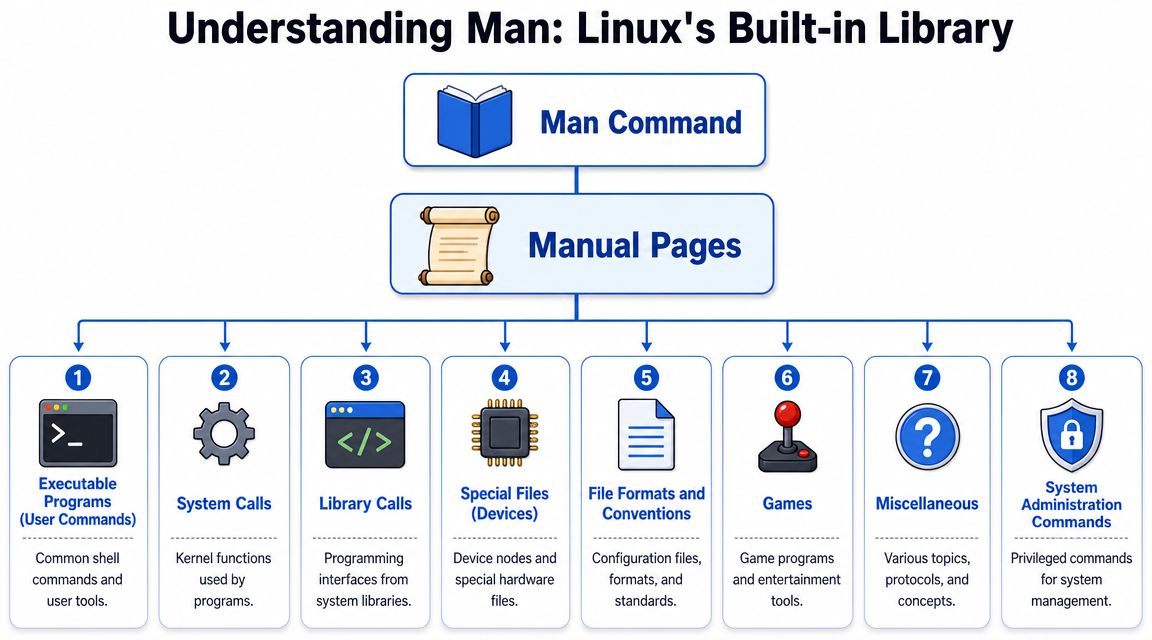
For day-to-day security work, three sections show up often:
- Section 1 covers user commands.
- Section 5 covers file formats and configuration conventions.
- Section 8 covers administrative commands.
That is why man passwd and man 5 passwd are not interchangeable. One helps you confirm command usage. The other helps you verify what the system stores and how it is structured.
This distinction pays off during manual validation. If you are reviewing account controls, checking PAM-related files, or confirming how a service reads a config file, section targeting gets you to the right reference faster. The same habit also helps during Linux patch management and system hardening reviews, where accuracy on file locations and command behavior affects both remediation advice and audit evidence.
A junior tech often stops at the first man result. A stronger operator checks whether the name exists in more than one section and calls the one that matches the task.
Use these patterns:
man passwdfor the default pageman 5 passwdfor the file formatman 8 useraddfor an administrative command
Small detail, real payoff. During an engagement, section awareness cuts down wrong turns, keeps notes accurate, and helps you move from host validation to client-ready findings with less rework.
Navigating Manual Pages for Quick Information
You are on a client box at 2 a.m., trying to confirm whether a flag behaves the way you remember before you touch a service, pull a file, or document a finding. In that moment, man is not background reference material. It is the fastest offline check you have.
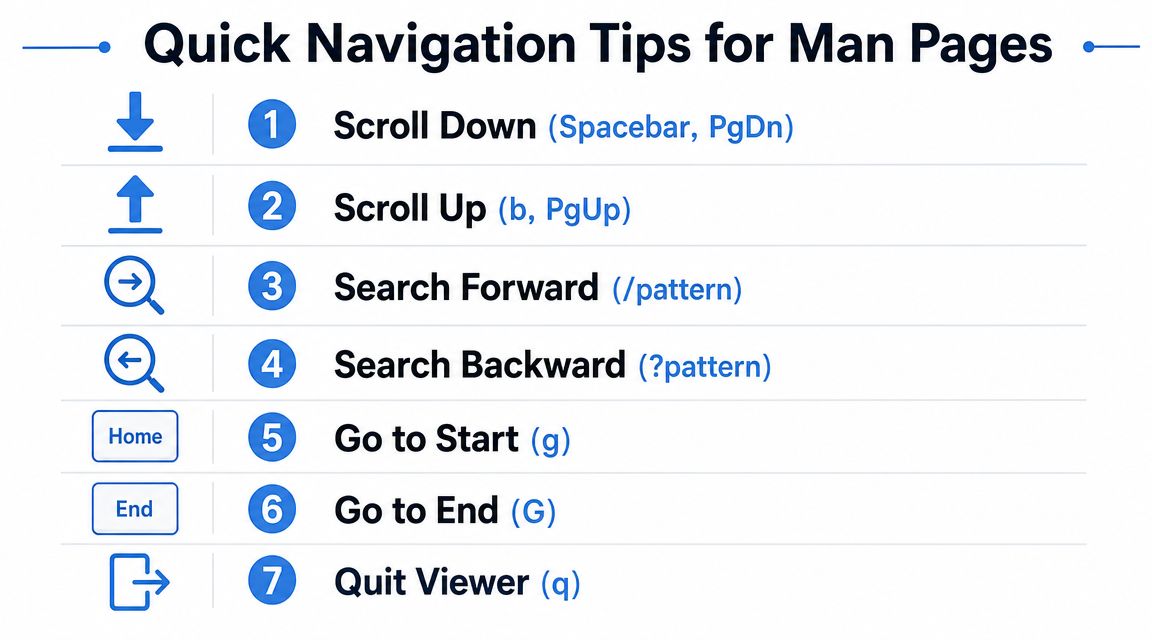
Opening the page is the easy part. The actual skill is pulling the answer you need in seconds, then getting back to the assessment. Pager controls matter for that. Space moves forward, b moves back, and q exits. Learn them once and you stop wasting time inching through long pages.
What to scan first
Manual pages are easier to work with when you read them in the order that supports the job in front of you:
- NAME confirms you opened the right page.
- SYNOPSIS shows the command structure fast.
- DESCRIPTION fills in behavior that can affect test results.
- OPTIONS is usually where you verify the flag you need before you run it.
During a penetration test or compliance audit, reading top to bottom is rarely the best use of time. Go straight to SYNOPSIS, then search for the option, keyword, or file path that matters to the task. If you need to check whether a command writes output, follows symlinks, changes permissions, or handles recursion in a specific way, that approach gets you there faster.
Use /pattern to search inside the page. Press n to jump to the next match. That is the difference between finding one switch in five seconds and burning a minute scrolling through text you do not need.
This also improves the quality of your notes. If you are validating configuration handling, hardening steps, or remediation guidance tied to Linux patch management and system hardening reviews, quick, accurate checks inside man help you avoid bad assumptions and cut down rework later.
Finding the Right Command with Man Search Options
Users often employ man only when they already know the command name. That's useful, but it misses the bigger advantage. man also works as a discovery layer when you know the task but not the exact utility.
Operationally, man supports several key lookup modes, including direct page lookup, one-line summaries with -f, keyword search with -k, section-specific lookup, and path display with -w (GeeksforGeeks overview of man command modes). In practice, that turns Linux documentation into something closer to an indexed local database than a simple help screen.
The search options that actually help
When you're working fast, these are the modes that pull their weight:
man -k keywordsearches by keyword. Begin here if you know the function but not the command.man -f commandgives the one-line description from the whatis database. Good for quick confirmation.man -w commandshows where the installed manual page lives, which is useful when you need to verify what's present on the system.
Red Hat also notes that man -k performs keyword search, man -f gives the one-line description, and man -wK returns matching page paths while searching broadly, which helps move from knowing an exact utility name to finding tools by function (Red Hat on useful man options).
Where this helps during a pen test
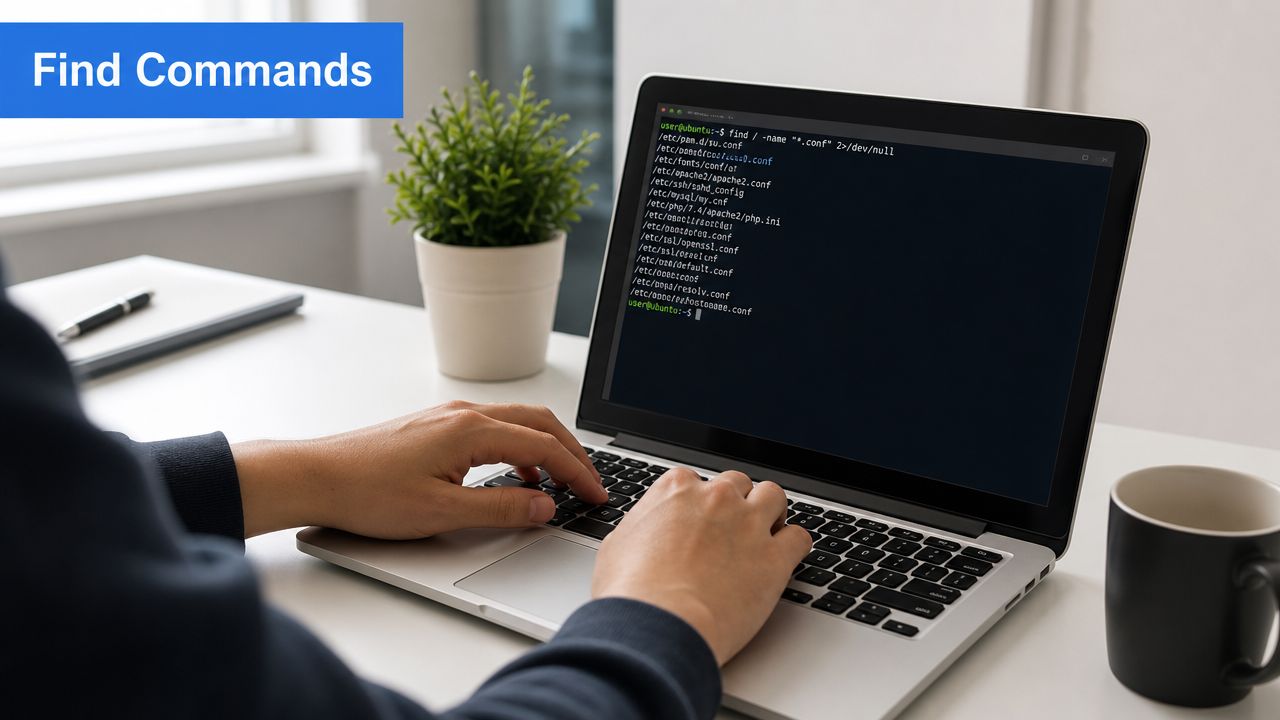
Say you're looking for utilities related to archive handling, process inspection, or account management, but you don't remember every binary on the host. man -k gives you a practical shortlist. That's useful for living-off-the-land work during a penetration test, where using what's already installed is often the cleanest move.
For a vCISO, GRC advisor, or MSP engineer supporting compliance, these lookups also help identify which native tools exist for administration and evidence collection. What doesn't work is relying on memory alone. Linux systems vary. Packages vary. Installed documentation varies too.
Advanced Tips for Customizing Your Man Experience
Once you use man heavily, a few tweaks make life easier. One is adjusting your environment so documentation for non-standard tools is easier to reach. On specialized security boxes, internal utilities or custom packages don't always live in the default places you expect.
Useful adjustments for busy operators
A few habits help in practice:
- Set a custom path when needed: If your environment includes custom man pages, adjusting your manual search path can make those docs available alongside the defaults.
- Rebuild the manual index: If search results feel incomplete after package changes, rebuild the local man database. That often fixes “why can't man find this” problems.
- Know when another tool is faster:
tldrcan be handy for quick examples, andinfocan be helpful for some GNU documentation.
None of those replace man. They complement it. When you move between client environments, distributions, and security toolsets, man remains the common denominator.
Use the universal tool first. Fancy helpers are nice, but they aren't guaranteed to be installed.
Another practical point is that shell built-ins can behave differently from standalone programs from a documentation perspective. If a command doesn't have the page you expect, don't assume the system is broken. Check whether you're dealing with a shell built-in or a separate executable.
Practical Man Command Examples for Security Pros
Here, the man command in Linux stops being theory and starts saving time.
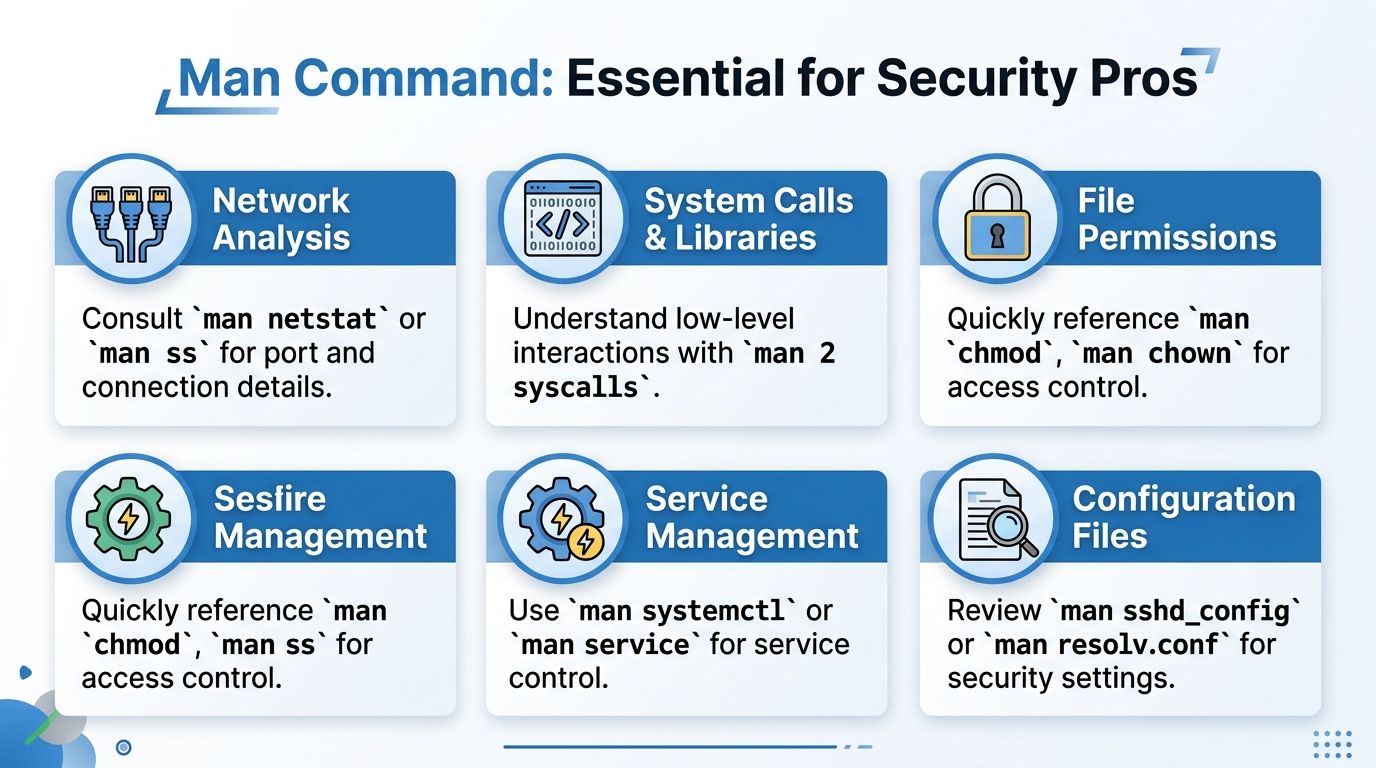
During a host review, I'll often use man ss or man netstat to confirm the exact option behavior before checking listening services and established connections. That's basic work, but it shows up in a lot of risk assessment and compliance tasks. If you're validating exposure for SOC 2 or checking whether an internal host is running services it shouldn't, being accurate matters.
Examples that come up in real engagements
Another common one is configuration review. man sshd_config or man resolv.conf helps when you're validating security-relevant settings and need the system's own documentation, not somebody's half-remembered blog post. The same goes for man chmod and man chown when you're reviewing permission issues tied to data access.
Then there's service control and troubleshooting. If you need to verify how systemctl behaves on a client host, the manual page gives you the syntax and expected usage quickly. That's useful during internal assessments, incident response support, and general hardening checks.
The fastest analysts don't memorize everything. They know how to verify details without leaving the terminal.
For broader defensive context, it also helps to pair hands-on host review with stronger vulnerability management strategies so findings from a pen test feed into remediation instead of sitting in a report.
Certificate and crypto work is another place where exact syntax matters. If you're checking OpenSSL usage during a review, it helps to keep a practical reference like this guide to OpenSSL certificate generation close by, then use local manual pages to verify behavior on the host itself.
If a team wants outside support for this kind of work, MSP Pentesting provides white label pentesting services for MSPs, including manual assessments across internal, external, cloud, web, mobile, and social engineering scenarios. That kind of support fits when a reseller needs delivery capacity without competing against its own client relationships.
Partner with Us for Your Next Penetration Test
The man command won't make someone a great pentester on its own. What it does is remove avoidable friction. It helps skilled operators move faster, verify details locally, and stay accurate when they're under pressure during a pen test or penetration testing engagement.
That's the bigger point for MSPs, vCISOs, GRC firms, and resellers. Good tools matter, but good judgment matters more. Manual testing still depends on experienced people who know when to trust a default, when to question an output, and when to dig deeper during a compliance review or live assessment.
Our team works as a channel-only partner, so we don't compete with the MSPs and advisors we support. We deliver affordable, manual pentesting through OSCP, CEH, and CREST-certified pentesters, and we do it in a way that fits white label delivery models. If you need support for an internal review, this overview of internal penetration testing services is a good place to start.
If you need a channel-only partner for white label pentesting, penetration testing, or manual security assessments, contact us today and have our team test under your logo.
.png)
.avif)
.png)
.png)
.png)

