
A tech is onsite. The client needs a laptop reimaged before lunch. The USB boots fine on one machine, then fails on the next with Selected Boot Image Did Not Authenticate. Someone suggests disabling Secure Boot and moving on.
That shortcut is why this problem keeps coming back.
If you're an MSP, vCISO, or GRC advisor, this error isn't just a nuisance. It's a sign that your deployment workflow and the client's trust model aren't aligned. In regulated environments tied to SOC 2, HIPAA, PCI DSS, or ISO 27001, turning off protections just to get through imaging is sloppy operations.
That Frustrating Error Facing MSPs Today
You've probably seen the pattern. A field tech grabs a recovery USB, opens the boot menu, selects the device, and gets blocked by Selected Boot Image Did Not Authenticate. Then the guessing starts. BIOS setting? Bad flash drive? Corrupt ISO? Wrong boot mode?
The bigger problem is that most online advice treats this like a simple firmware annoyance. The key question is why one installer works and another doesn't. The practical issue for MSPs is preserving Secure Boot while figuring out whether the image is unsigned, misconfigured, or just incompatible with firmware policy, which is the gap highlighted in the Ventoy Secure Boot discussion.
That matters because your client doesn't hire you to bypass safeguards. They hire you to run a clean, repeatable, secure process.
Why the common fix is the wrong fix
Disabling Secure Boot can help you prove a diagnosis. It should not be your default remediation.
When a machine rejects a boot image, the firmware is telling you it doesn't trust what you're asking it to run. If your answer is always “turn the check off,” you're training your team to work around trust instead of managing it.
Practical rule: Use Secure Boot disablement as a temporary test, not a permanent deployment standard.
What MSP owners should take from this
This error shows up most often during moments that matter. New device rollout, incident recovery, hardware refreshes, and PXE imaging. Those are also the moments when clients judge whether your process is mature.
A mature process does three things:
- Keeps security controls intact: Especially in compliance-bound environments.
- Gives techs a diagnostic path: So they stop guessing and start isolating root cause.
- Standardizes approved media: So one office, one tech, or one client image doesn't become tribal knowledge.
If your team can fix this error without weakening client controls, you're not just solving a boot problem. You're proving your operational discipline.
Understanding Why Boot Authentication Fails
This error usually means UEFI Secure Boot rejected a bootloader because the firmware doesn't trust its signature. In HP environments using Ghost Solution Suite 3.x, Broadcom notes that the message appears when Secure Boot is enabled but Enable MS UEFI CA key is disabled, which means the system is enforcing policy, not reporting a generic failure, as described in Broadcom's knowledge base on this boot authentication error.
That distinction matters. The machine isn't confused. It's doing exactly what it was configured to do.
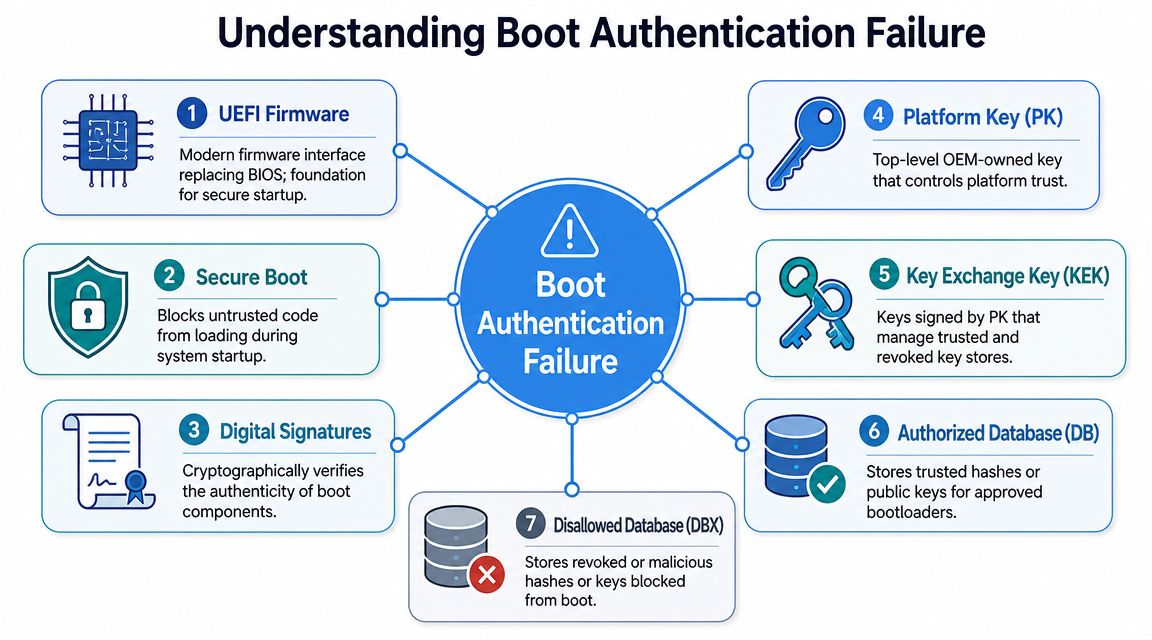
Think of Secure Boot like a bouncer
Your bootloader is trying to get into a private event. UEFI firmware checks whether that boot component carries credentials signed by a trusted authority. If the signature isn't in the machine's trust chain, entry is denied.
That's why one USB boots and another fails. It's not always the media itself. It's often the trust relationship.
If your team needs a plain-English refresher on key trust concepts, this primer on public key and private key encryption is worth bookmarking. The same core idea shows up in firmware trust, certificates, and identity systems. It's also why identity governance matters far beyond logins, especially when you're reviewing identity management solutions for small business and trying to keep device trust, user trust, and deployment trust aligned.
The usual root causes
A few patterns show up over and over:
- Unsigned or improperly signed boot media: Common with custom tools, modified Linux installers, and older recovery environments.
- Firmware trust settings missing the right key: The HP example above is a clean reminder that trust settings matter as much as the image itself.
- UEFI and Legacy mismatch: Media built for one boot path often fails under another.
- Old deployment media: Your “known-good” stick might only be known-good on older hardware.
The correct fix usually starts with trust validation, not BIOS roulette.
Why this matters for compliance
A lot of MSPs separate deployment work from security work. That's a mistake.
If you disable security controls every time imaging gets inconvenient, you're creating exactly the sort of process drift that shows up in a risk assessment. A vCISO reviewing endpoint hardening, a GRC consultant mapping controls, or an auditor reviewing documented procedures will care less about your speed and more about whether your process preserves system integrity.
A Prioritized Troubleshooting Checklist for MSPs
When this error hits, your techs need an order of operations. Not folklore. Not forum luck. A checklist.
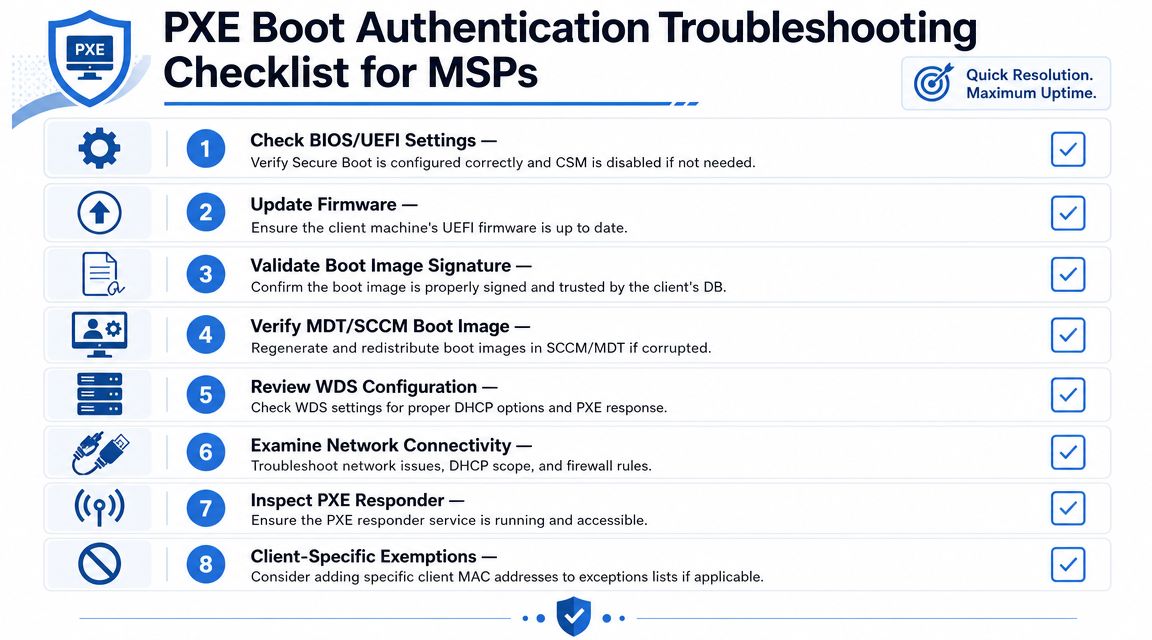
Start with the fastest checks
Don't touch firmware settings first. Validate the obvious.
- Test the same media on another Secure Boot-enabled machine
If the image fails on multiple systems, assume media or signing first. If it works elsewhere, look at firmware policy on the affected endpoint. - Confirm the boot mode matches the media
A UEFI image should boot in UEFI mode. If the media expects Legacy behavior, the machine may reject it or never load it correctly. - Try a vendor-created or freshly rebuilt image
Old USB sticks cause wasted hours. Rebuild the installer or WinPE media from clean source files rather than trusting a utility drive that has lived in a backpack for months.
Check firmware before changing firmware
Once you know the media is supposed to work, inspect settings carefully.
Look for these areas in BIOS or UEFI menus:
- Secure Boot status: Enabled, disabled, or custom
- Boot mode: UEFI, Legacy, Hybrid, or Native
- Key management options: Factory defaults, custom keys, or Microsoft CA settings
- CSM settings: Compatibility Support Module can interfere with modern deployment assumptions
A quick review catches a lot of bad assumptions.
Area to reviewWhat you want to verifyWhy it mattersBoot ModeUEFI matches the image typePrevents boot path mismatchSecure BootEnabled when required by client policyPreserves control baselineKey SettingsTrusted keys are present and intactAllows signed loaders to authenticateCSMDisabled unless there's a real needReduces mixed-mode confusion
Field advice: If a client has a documented security baseline, compare the machine to that baseline before making “temporary” changes that never get rolled back.
Use Secure Boot disablement only as a diagnostic
There's a right way to do this. Temporarily disable Secure Boot to confirm whether trust enforcement is the blocking factor. If the image boots only after that change, you've identified the class of issue.
Then turn Secure Boot back on and fix the image, the signing, or the trust settings. Don't leave the machine in a weaker state because the user needed a fast rebuild.
Update firmware and rebuild media
Firmware bugs and stale trust databases can create strange behavior. If the platform supports a firmware update from the OEM, apply it through your normal change process.
Then rebuild the media.
- Recreate WinPE or installer media: Use current tools and source files.
- Reinject only signed drivers: Especially storage and network drivers used at boot.
- Retest on matching hardware: Don't assume a VM result equals a physical-device result.
Keep a controlled media library
Operational maturity demonstrates itself in this context.
Maintain an internal catalog of approved boot media by hardware family and use case. Label which images support Secure Boot, which are for recovery only, and which require specific firmware settings. If you already sell security validation, this is also where penetration testing, penetration test scoping, or even a limited pen test of deployment infrastructure can help identify weak workflows. Some providers, including MSP Pentesting, support channel partners with white-labeled security testing when those infrastructure paths are in scope.
That isn't marketing fluff. It's process hygiene.
Fixing PXE Boot in SCCM WDS and MDT
USB media gets blamed a lot, but many MSPs hit this error during PXE boot. That's where things get expensive, because one bad boot image can stall an entire deployment window.

Why PXE workflows break harder
This issue became widely visible as Windows 8-era UEFI security controls went mainstream. Microsoft support discussions show it appearing often on systems upgraded from Windows 8 to 8.1, where Secure Boot policy and boot-mode mismatches collided with older deployment assumptions, as seen in the Microsoft Answers discussion about this boot problem.
That history still matters. A lot of imaging environments carry old assumptions forward.
What to check in SCCM WDS and MDT
Focus on the deployment chain, not just the endpoint.
- Regenerate boot images: If your SCCM or MDT boot images are old, rebuild and redistribute them to deployment points.
- Review WDS image assignments: Make sure the right architecture and current image are being served.
- Use signed boot-critical drivers: Bad storage or network driver choices inside boot images can break trust or startup behavior before the task sequence even starts.
- Verify platform compatibility: Modern UEFI systems often expose problems that older BIOS-era workflows hid.
If your team still has confusion around partition style and boot behavior, this quick comparison of GPT vs MBR is useful when sorting UEFI imaging issues from disk-layout issues.
Common MSP mistakes in PXE environments
A few mistakes show up constantly:
- Serving stale images from WDS: The console may look fine while the deployment point is still handing out yesterday's problem.
- Mixing Legacy and UEFI assumptions: Task sequences, boot files, and firmware settings have to match.
- Treating network boot as separate from trust: It isn't. PXE still lands inside the same Secure Boot policy model.
If one hardware model fails PXE while another succeeds, compare the boot image and firmware expectation first. Don't start by blaming DHCP.
For clients under HIPAA or PCI DSS, a weak imaging process creates repeatable control failures. It's not just downtime. It's an avoidable governance problem.
How to Properly Sign Boot Images
If you want the grown-up fix, this is it. Stop treating Secure Boot as the obstacle and start treating image signing as part of the deployment pipeline.

What proper signing actually means
A boot image has to be trusted by the firmware. That usually means the bootloader and related components need signatures that chain to a key the machine accepts.
For MSPs, the practical lesson is simple. If you build custom boot tools, recovery environments, or specialized WinPE media, you need a process for trust validation before they ever reach a client site.
A workable signing workflow
You don't need mystery. You need discipline.
- Build from clean source files: Start with current Microsoft tooling or vendor-supported media.
- Add only what's necessary: Drivers, scripts, and tools should be controlled, documented, and reviewed.
- Use the right certificate process: If your workflow includes custom signing, manage certificates like production assets, not like afterthoughts.
- Test on Secure Boot-enabled hardware: Lab validation has to reflect real policy.
If your team needs help with certificate handling, this walkthrough on OpenSSL certificate generation is a practical reference for the certificate side of the conversation.
What not to do
Don't normalize any of this:
- Permanent Secure Boot disablement
- One-off USB tools with unknown provenance
- Unsigned utilities passed from tech to tech
- Custom media with no version control
Bottom line: The fastest fix is often the most expensive later if it creates a weak standard across client fleets.
Why MSP owners should care
A properly signed and validated boot process saves labor, reduces escalations, and supports audit-ready operations. It also separates serious providers from “good enough” shops.
That's especially true if you sell around compliance, risk assessment, or security strategy. A client who trusts you with SOC 2, ISO 27001, or broader GRC work expects your deployment workflow to reflect the same standards you preach.
Secure Deployments Build Client Trust
Clients rarely see the technical detail behind a boot failure. They do see whether your team handles it with control or chaos.
The primary solution for Selected Boot Image Did Not Authenticate is usually not “turn off Secure Boot.” It's validating trust, aligning firmware with the image, and building deployment media that respects the client's security posture. That approach protects the endpoint and protects your reputation.
It also connects directly to the bigger security conversation. MSPs, reseller partners, and vCISO teams that care about secure deployment usually care about secure validation too. That includes pentesting, pen testing, penetration testing, and manual pentesting to support SOC 2, HIPAA, PCI DSS, and ISO 27001 programs. The market doesn't need more inflated pricing, weak methodology, and slow turnaround. It needs affordable, channel-friendly security work that helps partners deliver under their own brand without channel conflict.
If you want a channel-only partner for that work, see how MSP Pentesting delivers white label penetration testing under your own brand, run by certified testers with OSCP, CEH, and CREST backgrounds. We work with MSPs, vCISOs, and resellers without competing for your clients.

.avif)
.png)
.png)
.png)

