
You're probably in one of two spots right now. Either you need to fix something fast in a client environment, or you're trying to understand how an attacker could move through that same environment with tools already built into Windows.
That's why a solid PowerShell cheat sheet matters. For an MSP, PowerShell is the fastest way to inspect systems, automate cleanup, check logs, and validate controls tied to SOC 2, HIPAA, PCI DSS, and ISO 27001. For a pentest, pen test, or full penetration testing engagement, it's also one of the cleanest ways to enumerate, validate assumptions, and test how much access a compromised account really has.
The mistake junior teams make is treating PowerShell like a bag of random commands. The better approach is to treat it like a playbook. Know what to run first, what to export, what to avoid in production, and how the same command can help both offense and defense.
Why Every MSP Needs a PowerShell Playbook
A lot of MSP work starts the same way. A user reports something odd, a server feels slow, a task failed overnight, or a compliance review needs evidence by the end of the day. You can click through GUI tools for half an hour, or you can open PowerShell and get answers in minutes.
That gap has gotten wider over time. PowerShell launched in 2006 with about 130 commands, and by 2026 it had grown to over 1,500 distinct commands, a 1,150% increase according to this PowerShell growth overview. That growth is exactly why a curated PowerShell cheat sheet matters for MSPs, security teams, and anyone supporting mixed Windows, macOS, and Linux environments.
For MSPs serving smaller businesses, the operational side matters just as much as security. If you want a non-technical explainer you can hand to a client, this guide to managed IT support for SMEs gives useful context for how day-to-day support, monitoring, and risk reduction fit together.
Why a playbook beats a long list
A raw list of cmdlets doesn't help much under pressure. A playbook does.
- Triage fast: Start with discovery, process review, service review, and event logs.
- Stay consistent: Junior techs can follow the same steps senior staff use.
- Support compliance: Repeatable commands help document security checks for GRC, risk assessment, and audit prep.
- Think like both sides: The same shell used for patching and reporting can also be used during a penetration test.
Practical rule: If a command helps you manage fifty systems faster, assume an attacker wants it too.
Core Commands for System Discovery and Reconnaissance
When you first land on a system, you need orientation. What commands exist, what processes are running, and what data can you trust without scraping messy text output.
PowerShell's biggest advantage is its object-based pipeline. Cmdlets output .NET objects, so commands like Get-Process | Select-Object Name,Id,CPU | Export-Csv preserve structured fields instead of flattening everything into strings, as explained in Netwrix's PowerShell commands cheat sheet. That's why Get-Command, Get-Help, Select-Object, and Export-Csv belong at the top of any serious PowerShell cheat sheet.
Start with these first
- Find what exists
Get-Command - This is your map. It tells you what cmdlets, functions, aliases, scripts, and modules are available on the box.
- Check syntax before you break something
Get-Help Get-Process -Examples - Junior techs skip this and guess. That's how people use the right command with the wrong parameter.
- See what's running
Get-Process | Select-Object Name,Id,CPU - Good for triage, suspicious activity review, and fast recon during a pen test.
- Export clean evidence
Get-Process | Select-Object Name,Id,CPU | Export-Csv .\processes.csv - If you're handing results to a vCISO or using them during an internal review, export structured output early.
A lot of this also overlaps with identity review. If your recon is moving toward user and privilege analysis, this Active Directory audit guide is a practical next step.
Don't memorize every cmdlet. Memorize how to find the right one quickly.
Navigating The File System and Windows Registry
The file system tells you what users and applications are doing. The registry tells you what Windows plans to do next. Both matter in admin work and in manual pentesting.
For defenders, these locations hold startup settings, script paths, software traces, and policy values. For offensive work, they often reveal weak permissions, leftover tooling, plaintext configuration, and persistence points that never got cleaned up.
File system commands worth keeping close
- Walk a directory tree
Get-ChildItem -Path C:\ -Recurse - This is the PowerShell version of
dir, but much more useful when you need recursion and filtering. - Read a file quickly
Get-Content .\notes.txt - Write or replace content
Set-Content .\output.txt "reviewed" - Search for likely secrets
Get-ChildItem -Path C:\ -Recurse -File | Select-String -Pattern "password","token","secret"
That last pattern is simple, but it's effective for quick checks in scripts, config files, and deployment leftovers.
Registry checks that solve real problems
Use Get-ItemProperty when you need to inspect startup entries, software settings, or policy-related keys.
- Read a registry path
Get-ItemProperty -Path 'HKLM:\Software\Microsoft\Windows\CurrentVersion\Run' - Audit system settings
Get-ItemProperty -Path 'HKLM:\Software\Policies'
These checks matter during compliance reviews because they help validate hardening and configuration decisions tied to PCI DSS and ISO 27001. They also matter during response work when you're trying to see whether something added persistence.
If you're reviewing security controls around endpoint protection behavior, this write-up on disabling Windows Defender in Windows 10 is useful background because it shows how quickly a change in settings can become a serious risk.
Network and Active Directory Enumeration Commands
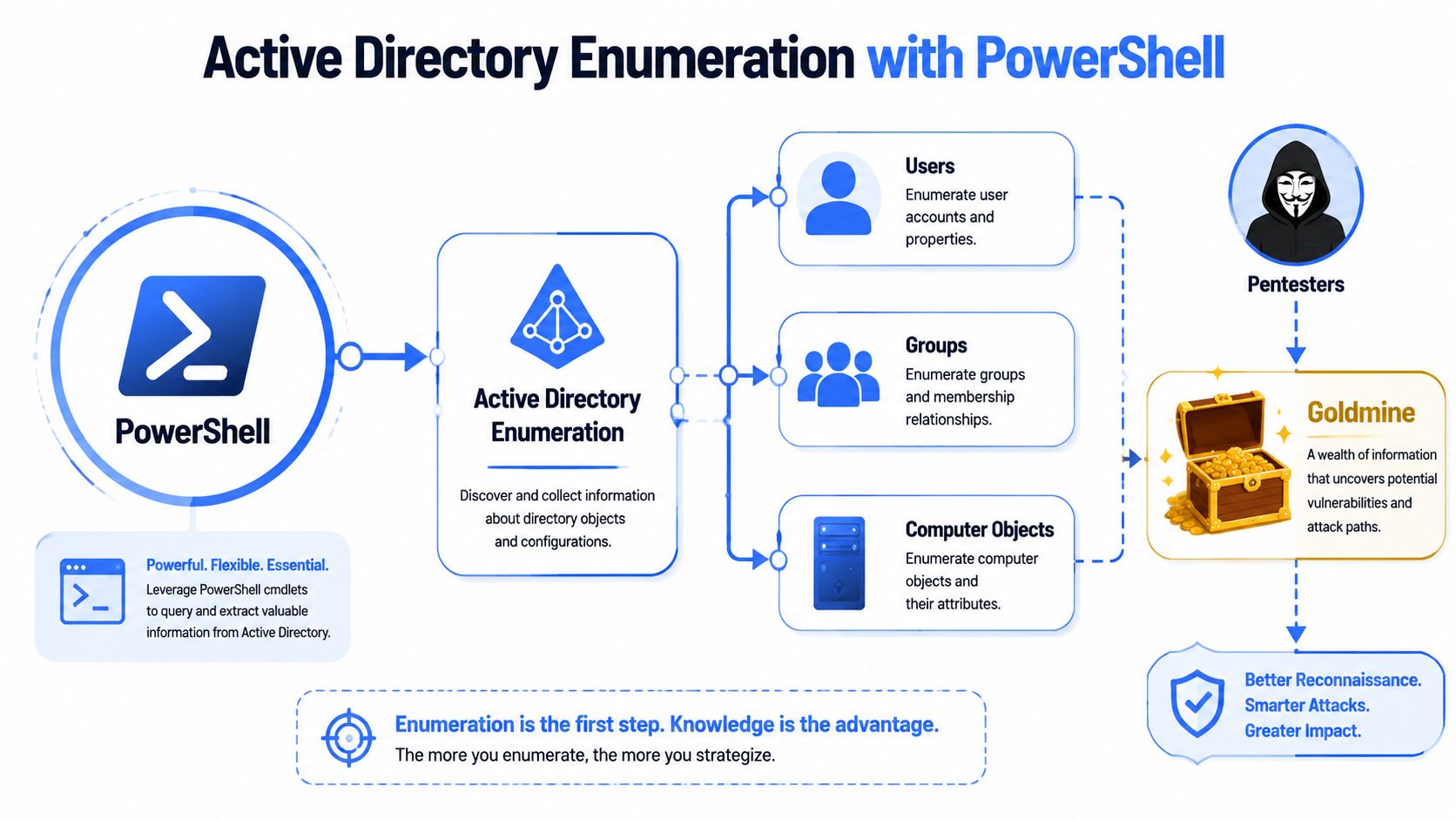
PowerShell is everywhere in enterprise operations, and that's why it sits at the center of both administration and attack paths. Industry telemetry cited in this PowerShell telemetry summary estimates 4.5 billion PowerShell operations weekly across global enterprises, with over 75% of sysadmins using it daily and adoption in large organizations at over 95%. If you work with SOC 2 environments, that isn't trivia. It means PowerShell skill is part of basic operational security.
Here's the mental model. Attackers enumerate to find paths. MSPs enumerate to close them.
Network commands that answer immediate questions
CommandWhy it mattersGet-NetIPAddressShows interface addressing and helps confirm network placementTest-Connection hostnameQuick connectivity check during troubleshooting or reconTest-NetConnection hostname -Port <port>Useful when a service is reachable but not responding as expected
These are safe, fast, and often enough to tell you whether you're dealing with a local problem, routing issue, or a blocked service.
Active Directory commands that expose real risk
If the AD module is available, these are daily-use commands.
- Users
Get-ADUser -Filter * - Computers
Get-ADComputer -Filter * - Group membership
Get-ADGroupMember -Identity "Domain Admins"
For a pentest or penetration test, those commands reveal privilege concentration and likely pivot points. For a vCISO, reseller, or MSP doing a risk assessment, they help identify stale users, broad admin groups, and systems that deserve tighter review.
A domain usually doesn't fail because one command exists. It fails because nobody checked what that command reveals.
Managing Processes Services and Scheduled Tasks
Routine support and threat hunting share a significant overlap. A broken backup agent, a rogue updater, a miner, and a persistence mechanism can all show up in the same three places: processes, services, and scheduled tasks.
The offensive and defensive difference is intent. A defender asks, “What should be here?” An operator on a pen testing engagement asks, “What can I disable, abuse, or blend into?”
Defensive view versus offensive view
AreaDefensive useOffensive useGet-ProcessSpot unusual processes or heavy resource useIdentify security tools and user appsGet-ServiceCheck service health and startup stateFind services to abuse or stopGet-ScheduledTaskReview persistence and maintenance jobsDiscover recurring tasks and weak task configs
Go-to commands
- Process review
Get-Process | Sort-Object CPU -Descending - Service review
Get-Service | Where-Object {$_.Status -ne 'Running'} - Task review
Get-ScheduledTask - Terminate a process
Stop-Process -Name notepad
That last one is harmless in a lab with Notepad. In a real environment, stopping the wrong process can interrupt EDR, line-of-business software, or client operations. That's the trade-off. The command is simple. The judgment is not.
Remote Execution and Lateral Movement Techniques
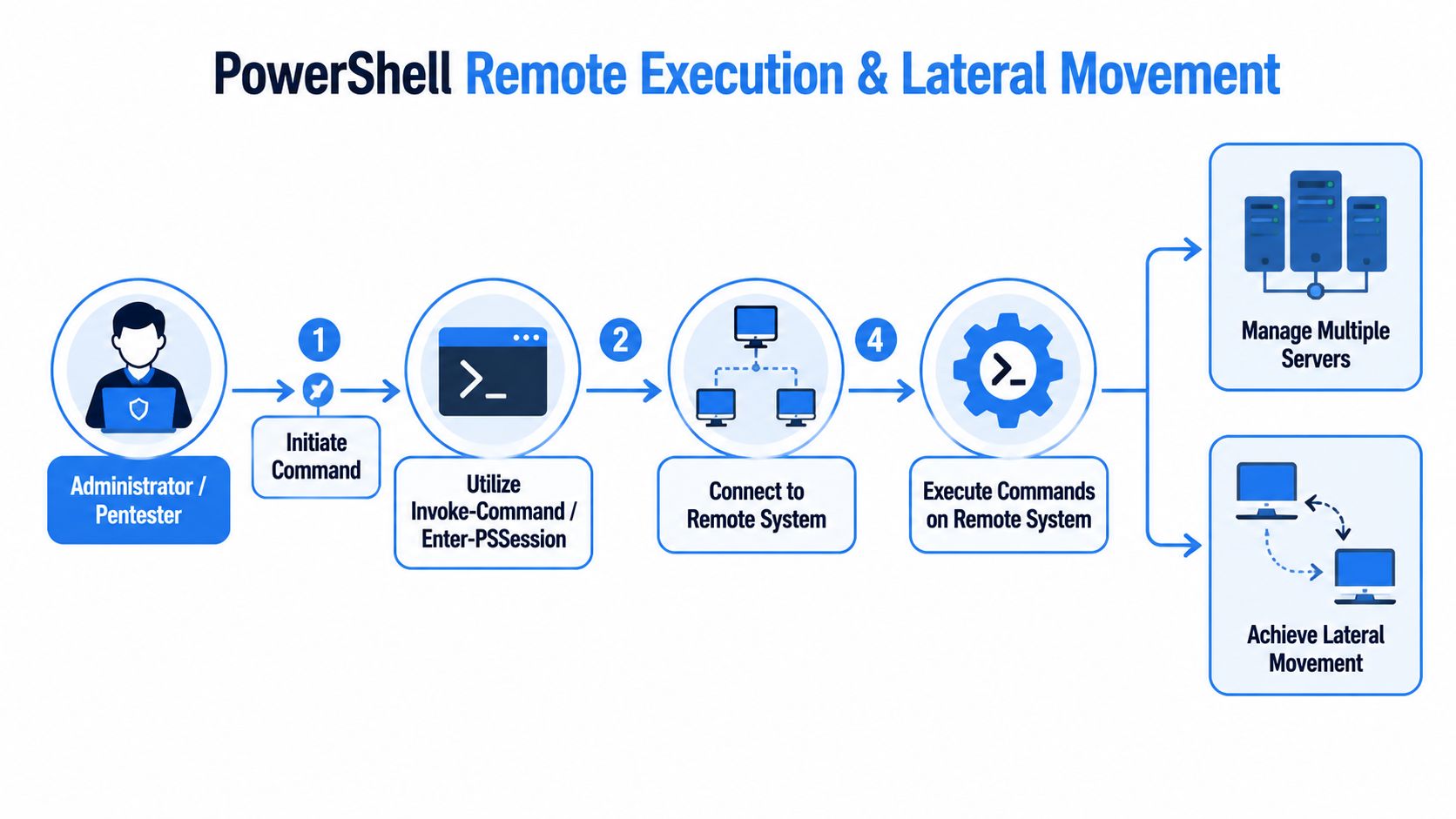
Remote PowerShell is one of the best admin features Microsoft ever shipped. It's also one of the fastest ways to spread impact after credential compromise.
A common path during a penetration testing engagement goes like this. You validate access on one host, confirm whether remoting works, and then test what that identity can touch elsewhere. If remote execution is too open, a small foothold turns into broad reach very quickly.
The two commands that matter most
- Interactive remote shell
Enter-PSSession -ComputerName SERVER01 - Run a command remotely
Invoke-Command -ComputerName SERVER01 -ScriptBlock { Get-Process }
For MSP work, this is excellent for remote admin, software checks, and targeted response. For offense, it enables movement with native tooling.
CloudCops' lateral movement insights are worth reading because they frame the bigger problem well. Once an attacker can move between systems, the incident stops being local.
What works and what fails
What works:
- Tight admin scoping
- Least privilege
- Review of who can remote where
- Logging and event review during investigations
What fails:
- Broad shared admin access
- Treating remoting as harmless because it's built in
- Ignoring old credentials and stale admin groups
If you want a simple operational example for legitimate admin use, this guide to remote restart computer tasks shows the same core idea in a support context. The lesson is the same on both sides. Remote capability is powerful, so it needs guardrails.
Practical PowerShell One-Liners for Pentesters
Most cheat sheets stop too early. They give syntax, maybe a few discovery commands, and then leave you to build workflows on your own. That's the gap Syncro highlights in its PowerShell cheat sheet discussion. A primary need is copy-pasteable procedures for investigation, triage, and response, especially for MSP teams.
The best one-liners do two things at once. They answer a question quickly, and they produce output you can act on.
Four one-liners worth knowing
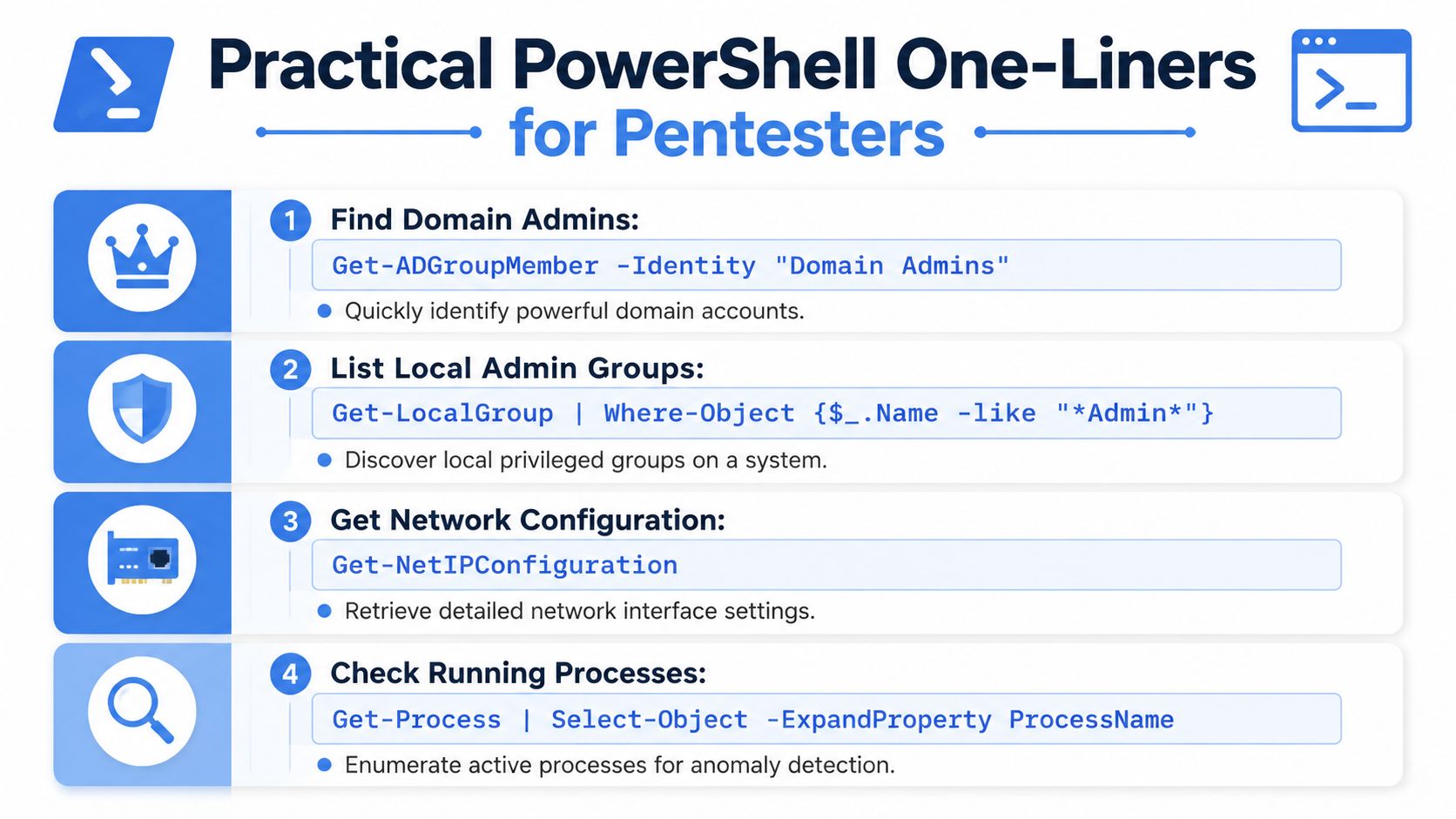
- Find domain admins
Get-ADGroupMember -Identity "Domain Admins" - Fast privilege mapping. High-value during a penetration test and just as valuable during a defensive privilege review.
- List local admin-related groups
Get-LocalGroup | Where-Object {$_.Name -like "*Admin*"} - Good for spotting local privilege structures that drifted over time.
- Pull network configuration
Get-NetIPConfiguration - Better than asking a user what network they're on.
- List running process names
Get-Process | Select-Object -ExpandProperty ProcessName - Fast baseline check before deeper triage.
Two more that earn their keep
- Check event data
Get-WinEvent -LogName Security -MaxEvents 20 - This is one of the most useful incident-response commands in PowerShell.
- Batch filter output
Get-Service | Where-Object {$_.Status -eq 'Running'} | Select-Object Name,DisplayName - Good example of how
Where-ObjectandSelect-Objectturn noise into signal.
Keep one-liners readable. Clever commands impress people for five seconds. Clear commands help teams during an incident.
Partner with Us for Affordable Pentesting
A strong PowerShell cheat sheet is useful, but it doesn't replace real testing. It helps your team move faster, investigate smarter, and understand how attackers use native tooling. It doesn't tell you whether your client's controls hold up under pressure.
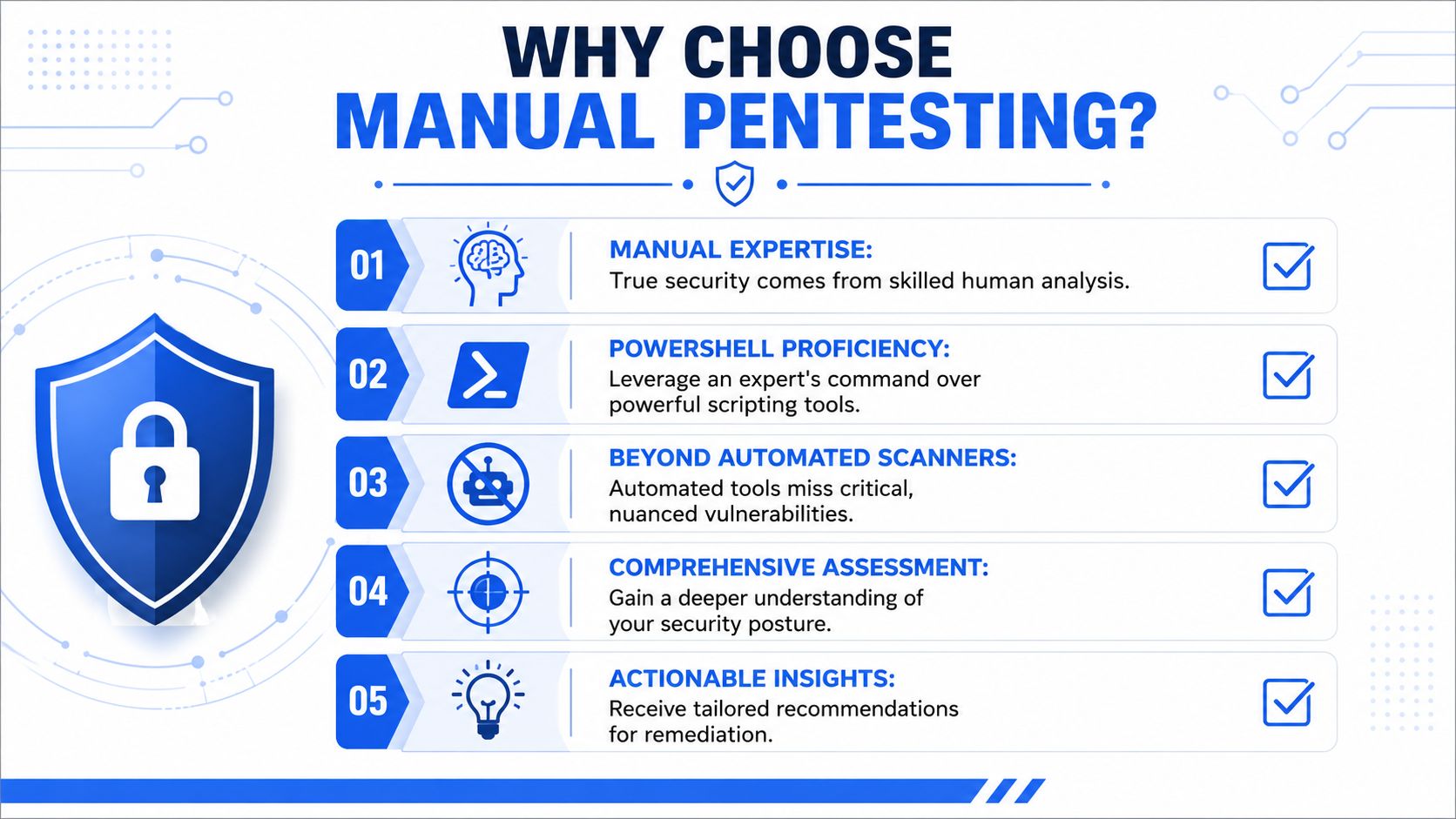
That's where manual pentesting matters. Automated tools can enumerate and flag. Skilled testers validate context, chain findings together, and show what an attacker could really do with the access available. That matters for SOC 2, HIPAA, PCI DSS, ISO 27001, and broader compliance work where evidence needs to reflect reality, not just scanner output.
Why experienced testers still rely on PowerShell
Security-focused guidance around Set-ExecutionPolicy is a good example. NinjaOne's write-up explains that Set-ExecutionPolicy is a policy gate, not a sandbox, and that it should be paired with script signing, least privilege, and history-aware commands like Get-History and Get-WinEvent for stronger security practice in real environments, as covered in this PowerShell commands reference.
That's the bigger point. Mature testing isn't about flashy payloads. It's about understanding how ordinary admin tools behave in production, where controls are weak, and how defenders can fix those gaps without breaking operations.
If you're comparing providers or looking at regional service options, this overview of Saskatchewan penetration testing 2026 is another useful example of how organizations frame testing needs around practical security outcomes.
For MSPs, vCISOs, GRC firms, CPAs, and other resellers, the best partner model is simple. Fast turnaround, affordable pricing, strong communication, certified talent like OSCP, CEH, and CREST, and a strict white label pentesting approach that never competes with the channel.
If you need a channel-only team for affordable, fast, manual pentesting that supports your MSP, vCISO, reseller, or compliance practice, see how MSP Pentesting delivers white label pentests under your own brand. We never compete for your clients, so you stay the trusted advisor.

.avif)
.png)
.png)
.png)

